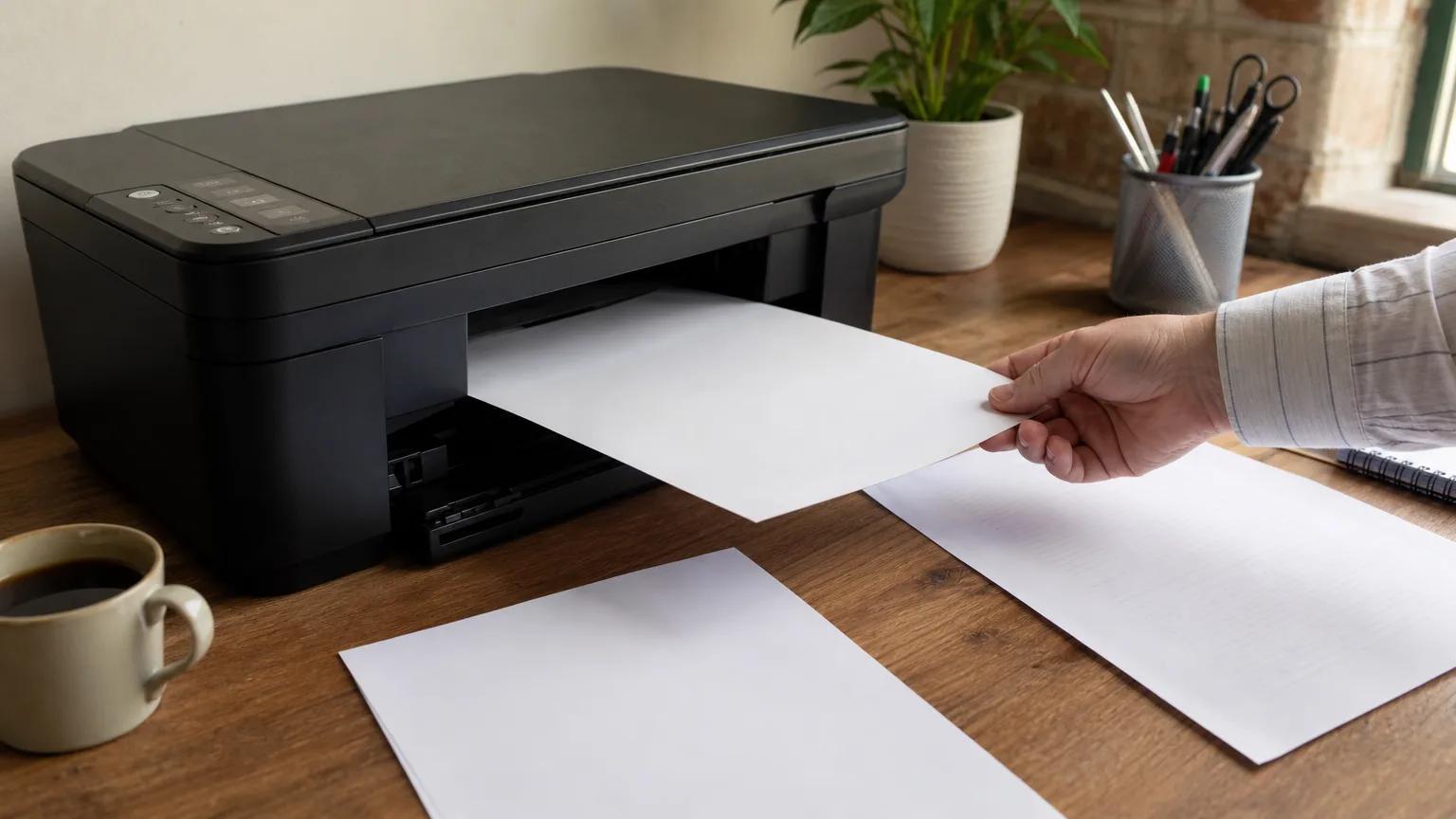
You send a document to print, the printer starts working, and the paper comes out completely blank. It can be frustrating, especially when you need an important document immediately.
A printer producing blank pages does not always indicate a major hardware failure. In many cases, the problem is related to ink or toner levels, cartridge installation, blocked printheads, or incorrect printing settings.
Whether you use an HP, Canon, Epson, Brother, or another printer, the following troubleshooting steps can help you identify and resolve the issue.
1. Check Ink or Toner Levels
One of the most common reasons for blank printouts is insufficient ink or toner. Your printer may appear to operate normally even when a cartridge is empty or unable to supply enough ink.
What to do:
- Open your printer’s maintenance or status software on your computer.
- Check the estimated ink or toner levels.
- Replace cartridges that are empty or no longer functioning properly.
- Print a test page to check the output.
Remember that estimated ink levels may not always be completely accurate.
2. Make Sure the Cartridges Are Installed Correctly
A cartridge that is incorrectly positioned or not properly recognized can prevent ink from reaching the paper.
Follow these steps:
- Turn on your printer and open the cartridge access area.
- Carefully remove the affected cartridge.
- Check whether any protective tape or packaging material remains attached.
- Reinstall the cartridge in its correct position.
- Close the access panel and check whether the printer recognizes it.
Avoid touching the electrical contacts or ink nozzles.
3. Clean the Printhead Nozzles
Inkjet printers use small nozzles to transfer ink onto paper. When these openings become clogged with dried ink, the printer may produce faded documents, missing lines, or completely blank pages.
How to clean them:
- Open the printer software on your computer.
- Find the Maintenance or Tools section.
- Select the Printhead Cleaning or Nozzle Cleaning option.
- Follow the instructions displayed on your screen.
- Print a nozzle check pattern to examine the results.
Some printers may require more than one cleaning cycle. Avoid running repeated cycles unnecessarily because they can consume ink.
4. Check Your Document and Print Settings
Sometimes the printer is working correctly, but the document or printing configuration is causing the problem.
Check the following settings before printing again:
- Make sure the document contains visible text or images.
- Confirm that the correct printer is selected.
- Check that the selected paper size matches the loaded paper.
- Disable options that may be causing unusual output.
- Try printing a different document to identify whether the issue is file-specific.
If only one document produces blank pages, the problem may be related to that particular file.
5. Update or Reinstall the Printer Driver
An outdated, corrupted, or incompatible printer driver can interfere with communication between your computer and printer.
To check the driver on Windows:
- Open Device Manager.
- Expand the Printers or Print queues category.
- Locate your printer.
- Right-click the device and select Update driver.
- Follow the available instructions.
If updating does not help, consider downloading the correct driver for your printer model and operating system from the manufacturer’s official website.
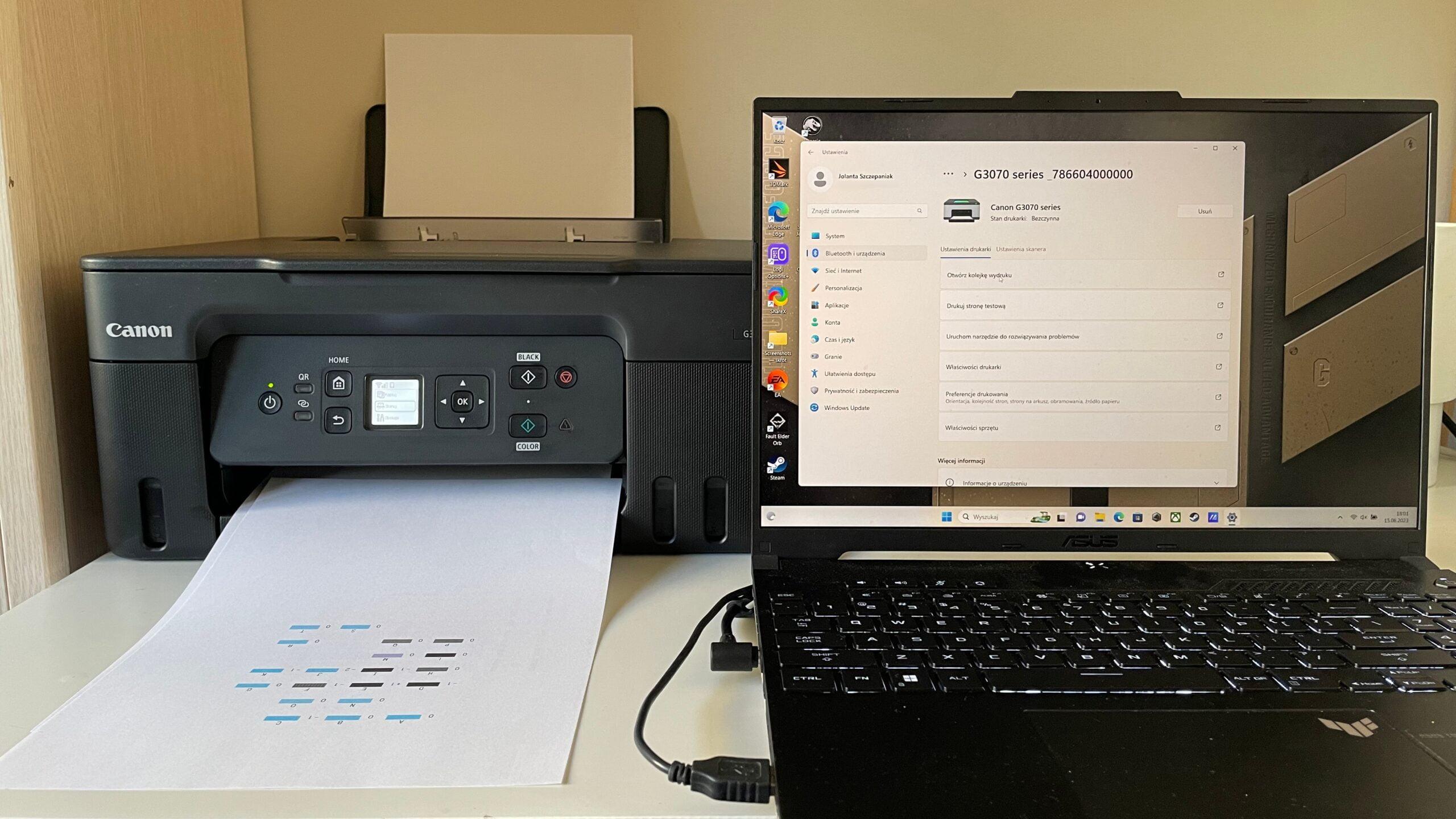
6. Try Printing a Built-In Test Page
A built-in test page can help determine whether the problem comes from the printer itself or the computer.
Many printer models allow users to print a test or status page directly through the printer’s control panel or maintenance menu.
If the test page is also blank, investigate the ink supply, toner cartridge, printhead, or other printer hardware.
If the test page prints correctly, check the computer’s document, driver, and printing settings.
7. Restart Your Printer and Computer
Temporary software or communication problems can sometimes affect printing operations.
Try restarting both devices:
- Cancel any active printing tasks.
- Turn off the printer.
- Disconnect its power cable for approximately one minute.
- Restart your computer.
- Reconnect the printer and turn it on.
- Send a new test print.
This simple process can help clear temporary device and software interruptions.
8. Inspect the Cartridge or Printer Hardware
If none of the previous methods work, the cartridge or printer hardware may need further attention.
Look for visible cartridge damage, incorrect installation, ink leakage, or warning messages on the printer display.
For laser printers, check whether the toner cartridge is properly installed and whether its protective sealing strip has been removed.
If the printer continues producing blank pages despite these checks, consult a qualified technician or the manufacturer’s support documentation.
Final Thoughts
A printer producing blank pages can be caused by several issues, ranging from low ink levels and clogged printheads to driver problems and hardware faults.
Start with the basic checks, such as cartridge installation and ink levels, before moving on to software updates or hardware inspection. Testing the printer independently can also help narrow down the source of the problem.
With the right troubleshooting approach, you may be able to restore normal printing without unnecessary repairs.
Frequently Asked Questions
1. Why does my printer print blank pages even with full ink?
This may happen because of clogged printhead nozzles, incorrectly installed cartridges, protective tape left on a cartridge, or a software-related issue.
2. Can an outdated printer driver cause blank pages?
Yes. An incompatible or corrupted driver can interfere with printing. Updating or reinstalling the correct driver may help.
3. Why does my printer print a test page but not my documents?
The issue may be related to the document, application, file format, or computer printing settings rather than the printer hardware.
4. Should I replace my cartridge if the printer keeps printing blank pages?
Not immediately. First check the cartridge installation, ink levels, protective seals, and printhead condition. Replace it if it is empty, damaged, or faulty.