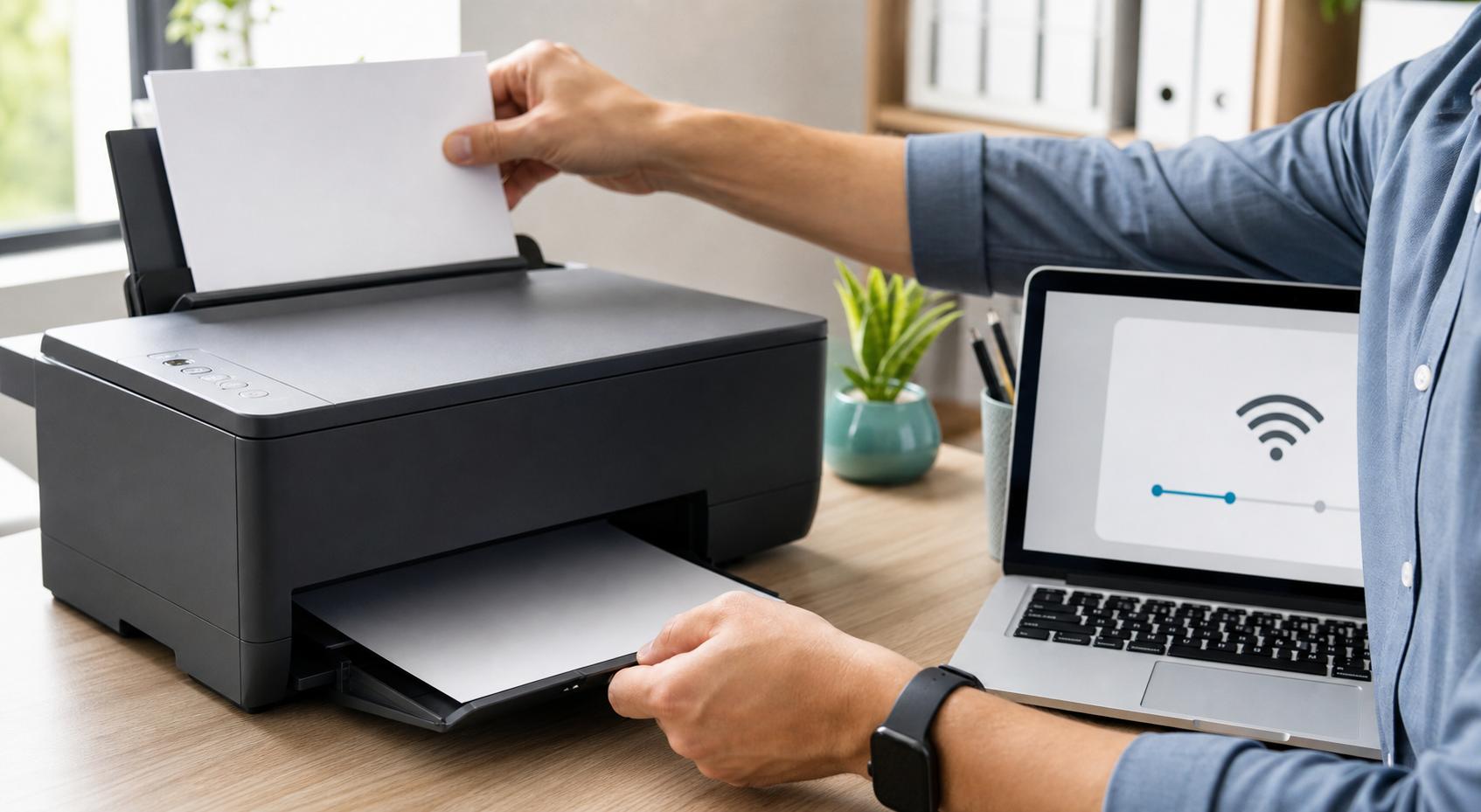
How to Connect a Printer to a Laptop? Step-by-Step Guide for Windows and Mac
Connecting a printer to your laptop allows you to print documents, photos, forms, and other files whenever you need them. Whether you have a new wireless printer or a traditional USB model, the setup process is usually straightforward.
However, the exact steps may vary depending on your printer model, operating system, and connection method.
In this guide, you will learn how to connect a printer to a Windows or Mac laptop using USB and Wi-Fi, install the necessary software, and print a test page.
1. Check Your Printer and Laptop Compatibility
Before starting the installation, check whether your printer supports your laptop’s operating system and preferred connection method.
First, identify the following details:
- Printer model: Find the model number printed on the device.
- Laptop operating system: Check whether you are using Windows 10, Windows 11, or macOS.
- Connection type: Determine whether your printer supports USB, Wi-Fi, or both.
- Printer software: Check whether the manufacturer provides a compatible driver or setup application.
If you are using an older printer, make sure its software supports your current operating system.
2. Connect Your Printer to a Laptop Using a USB Cable
A USB connection is one of the simplest ways to connect a printer to a laptop. It is particularly useful when you do not need wireless printing.
Follow these steps:
- Turn on your printer.
- Connect one end of the USB cable to the printer.
- Connect the other end to an available USB port on your laptop.
- Wait for Windows or macOS to detect the device.
- Allow the operating system to install a compatible driver, if available.
- Follow any additional setup instructions displayed on your screen.
If your laptop does not have a compatible USB port, you may need an appropriate adapter.
If the printer is not detected, try another USB port or cable. You can also download the correct driver from the manufacturer’s official support website.
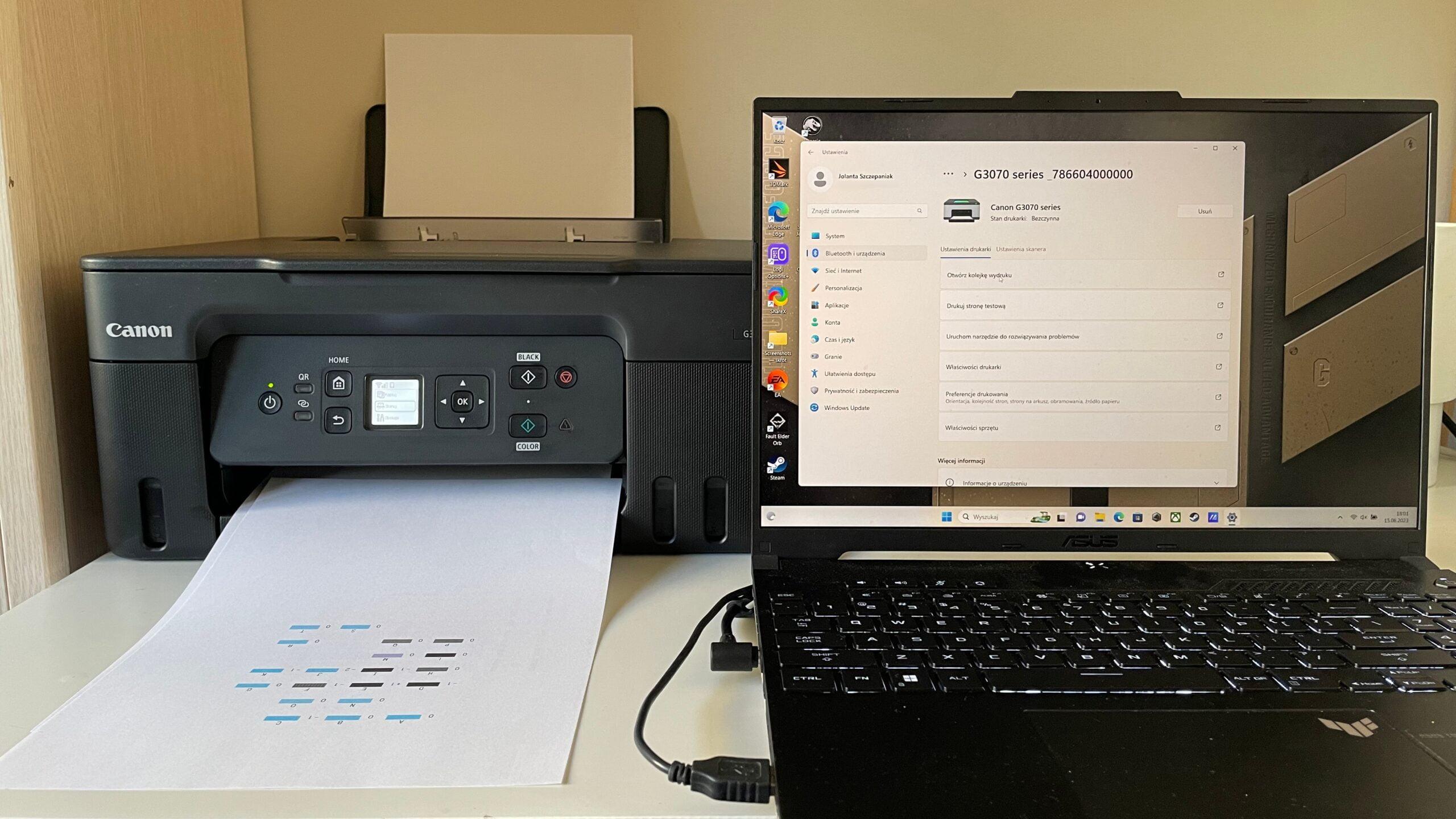
3. Connect a Printer to a Windows 11 Laptop
Windows 11 can automatically detect and install many compatible printers.
To add your printer:
- Turn on the printer.
- Connect it to your laptop using USB or make sure it is connected to the same Wi-Fi network.
- Open Settings.
- Select Bluetooth & devices.
- Click Printers & scanners.
- Select Add device.
- Wait for Windows to search for available printers.
- Find your printer and select Add device.
Windows will attempt to install the necessary software.
If your printer does not appear, check its connection and make sure it is powered on. You can also install its driver manually using the manufacturer’s official support website.
4. Connect a Printer to a Windows 10 Laptop
If you are using Windows 10, you can add a printer through the Devices settings.
Follow these instructions:
- Turn on your printer.
- Connect it through USB or connect it to your wireless network.
- Open the Start menu.
- Select Settings.
- Choose Devices.
- Open Printers & scanners.
- Select Add a printer or scanner.
- Wait for Windows to detect your device.
- Select your printer and follow the installation instructions.
If Windows cannot find your printer, check the manufacturer’s installation guide for additional setup instructions.
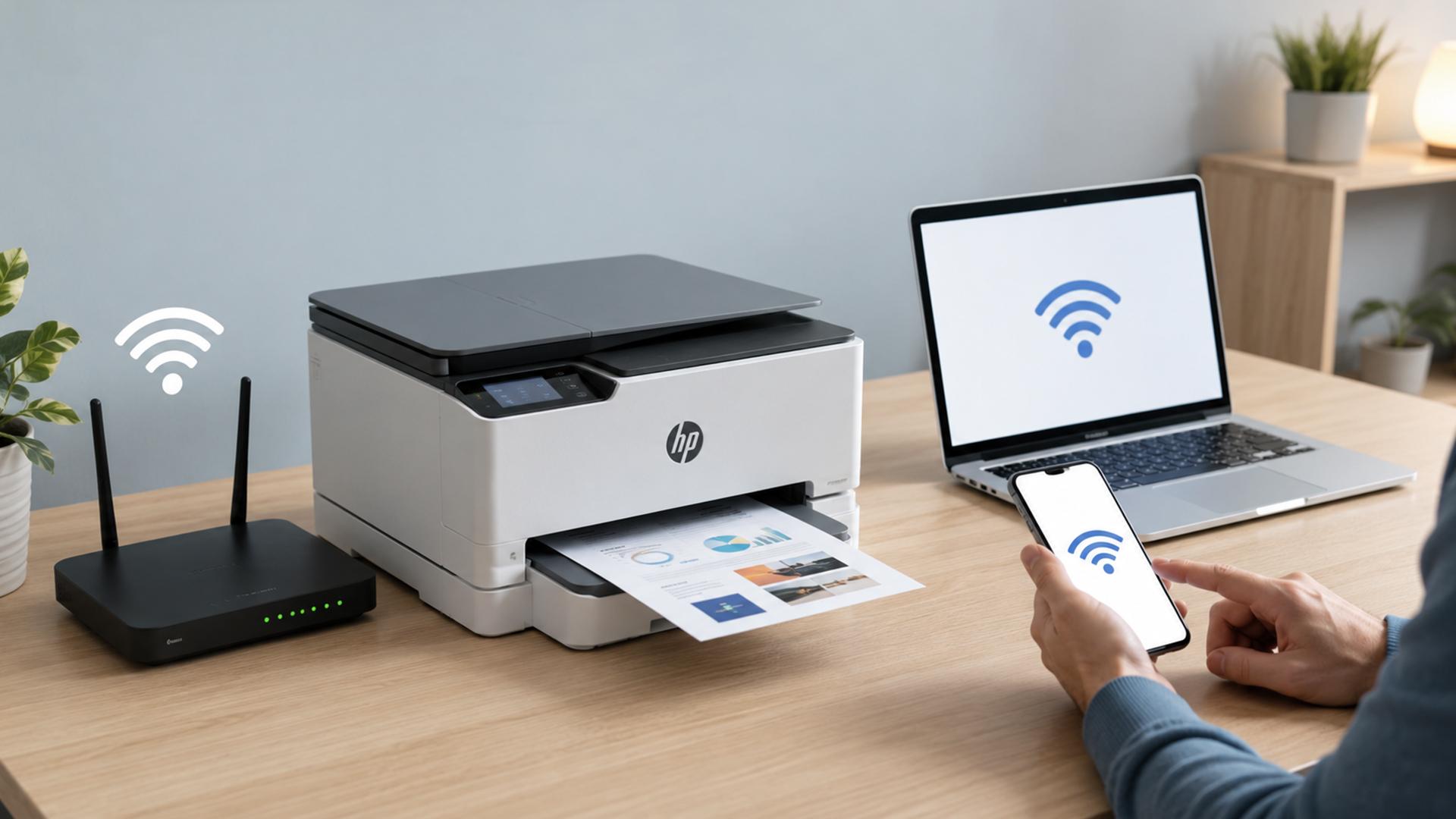
5. Connect a Wireless Printer to Your Laptop Using Wi-Fi
A wireless connection allows you to print without keeping your laptop physically connected to the printer.
Before starting, make sure your printer supports Wi-Fi and that your wireless network is working properly.
Follow these steps:
- Turn on your printer.
- Open its wireless or network settings.
- Select the Wi-Fi setup option.
- Choose your wireless network from the available list.
- Enter your Wi-Fi password.
- Wait for the printer to establish a connection.
- Connect your laptop to the same local network.
- Add the printer through your laptop’s printer settings.
Some printers use a manufacturer application or a guided wireless setup process instead of a control panel. Follow the instructions provided for your particular model.
6. Connect a Printer to a MacBook
Mac computers can automatically detect many compatible printers and install the required software.
To add a printer on macOS:
- Turn on your printer.
- Connect it to your Mac using USB or connect it to the same Wi-Fi network.
- Open the Apple menu.
- Select System Settings.
- Click Printers & Scanners.
- Select Add Printer, Scanner, or Fax, or the Add Printer option available in your macOS version.
- Wait for your printer to appear.
- Select the correct device.
- Choose the appropriate software or driver if prompted.
- Complete the setup process.
If your printer supports AirPrint, macOS may be able to use it without installing an additional manufacturer driver.
For printers that are not detected automatically, check the manufacturer’s macOS compatibility information and setup instructions.
7. Install the Printer Driver and Print a Test Page
A compatible printer driver helps your laptop communicate with the printer and access its available printing features.
If the operating system does not install the correct driver automatically, you may need to download it manually.
Follow these steps:
- Identify your printer’s exact model number.
- Visit the manufacturer’s official support website.
- Search for your printer model.
- Select your laptop’s operating system.
- Download the recommended driver or installation software.
- Open the downloaded file.
- Follow the installation instructions.
- Restart your laptop if required.
Once the installation is complete, print a test document to confirm that the connection is working.
On Windows, you can usually find the test page option under your printer’s settings or printing preferences. On macOS, open a document and select File > Print to check whether the printer responds.
Frequently Asked Questions
Can I connect a printer to my laptop without a USB cable?
Yes. If your printer supports wireless printing, you can connect it to your Wi-Fi network and add it through your laptop’s printer settings.
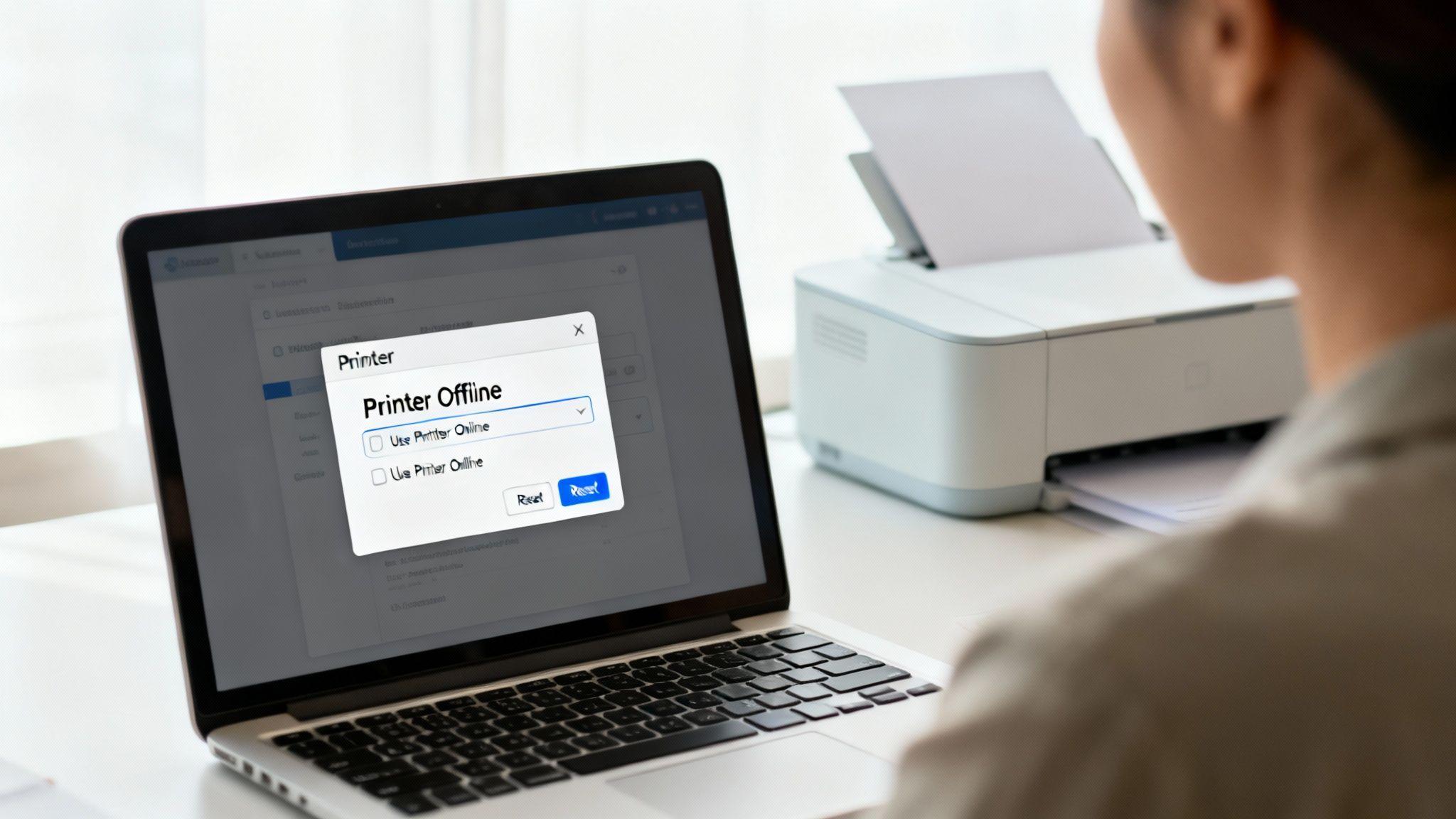
Why is my laptop not detecting my printer?
Your laptop may not detect the printer because of a loose USB connection, incorrect Wi-Fi settings, an incompatible driver, or a temporary communication problem. Check the connection and restart both devices before trying the setup again.
Do I need to install printer software on my laptop?
Not always. Windows and macOS can automatically install compatible software for many printers. However, some models require manufacturer-provided drivers or applications to access all available features.
Can I connect multiple printers to one laptop?
Yes. You can add multiple compatible printers to a single laptop and select the required device whenever you print a document.
Can I print from my MacBook without installing a driver?
Yes, if your printer supports AirPrint or another printing method supported by macOS. Some printers may still require additional software for specific functions.
Final Thoughts
Connecting a printer to a laptop is usually a simple process once you choose the correct connection method and install compatible software.
You can use a USB cable for a direct connection or Wi