Printer Scanner Not Working? 7 Ways to Fix Scanning Problems
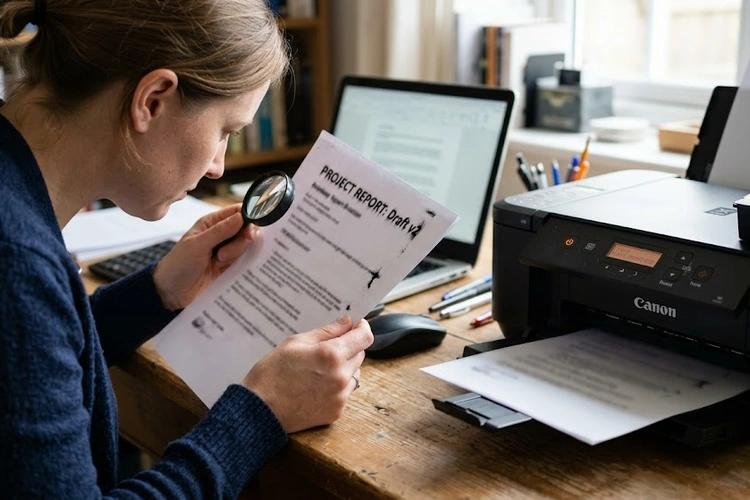
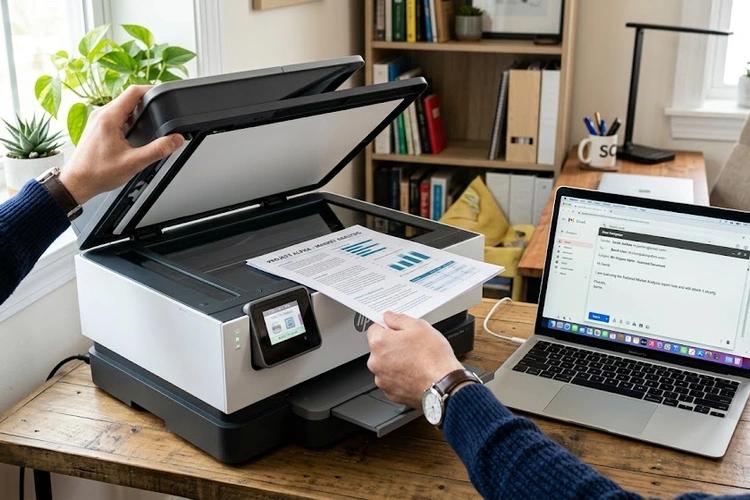
A multifunction printer makes it easy to print, scan, and copy documents using one device. However, scanning problems can occur when your computer cannot detect the scanner, scanning software stops responding, or the device fails to process documents.
Sometimes, the printer may continue printing normally while its scanning function stops working.
These problems can be related to connection settings, outdated drivers, incorrect software configurations, or temporary device errors.
Here are seven troubleshooting methods to help get your printer scanner working again.
1. Check the Scanner Connection
Start by checking whether your computer and printer are properly connected.
For USB-connected devices:
- Make sure the USB cable is firmly connected.
- Try another USB port on your computer.
- Check for visible cable damage.
- Avoid using unreliable USB hubs.
For wireless printers, confirm that the printer and computer are connected to the appropriate network.
A stable connection helps your computer communicate with the scanner.
2. Restart Your Printer and Computer
Temporary software interruptions can sometimes prevent scanning applications from communicating with the printer.
Try restarting both devices:
- Close any open scanning applications.
- Turn off your printer.
- Restart your computer.
- Turn the printer back on.
- Wait for the device to become ready.
- Open your scanning software and try again.
This simple process may resolve temporary communication problems.
3. Check Whether Your Computer Detects the Scanner
Your computer must recognize the scanning device before you can use its scanning functions.
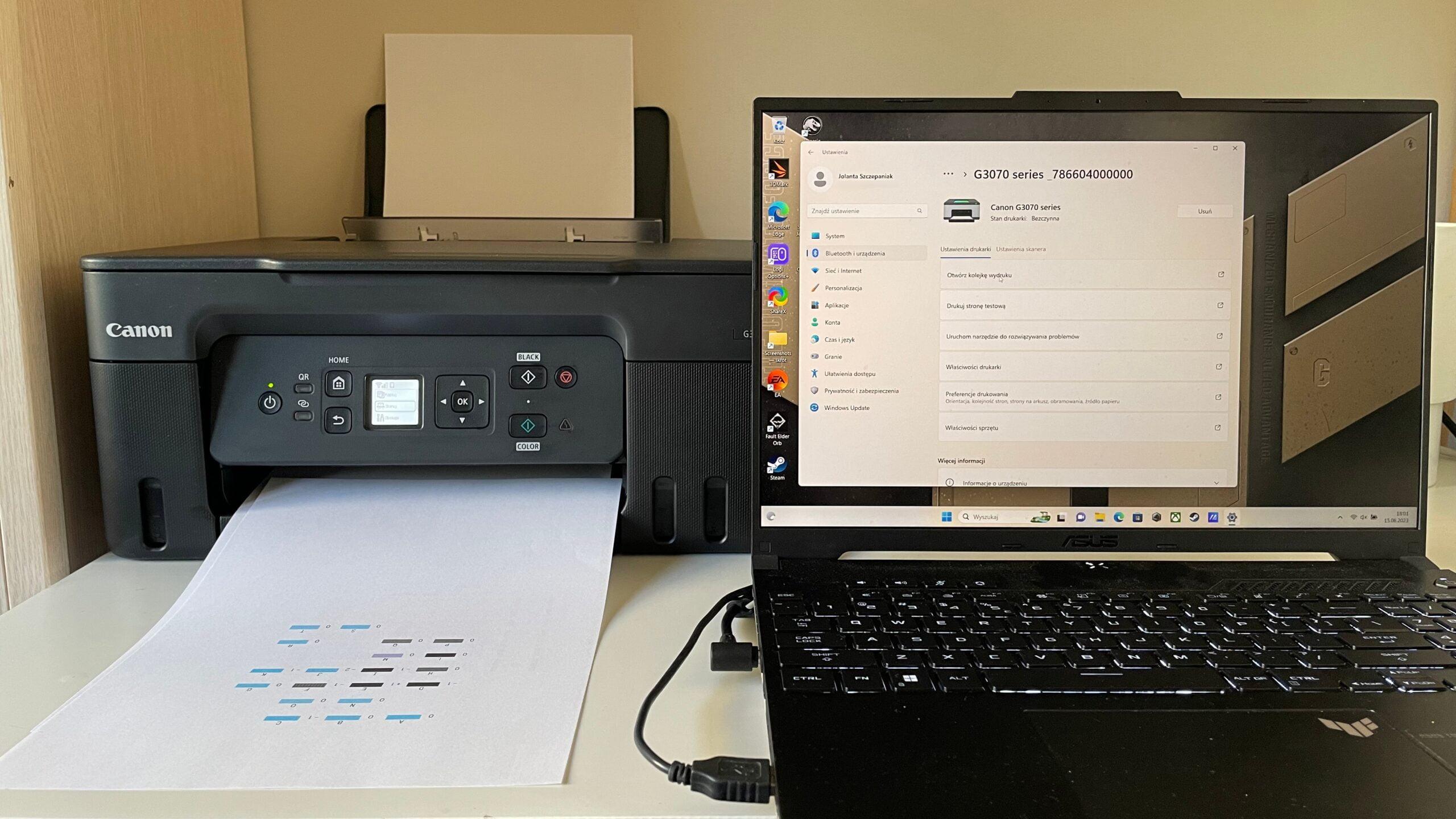
On Windows 11 or Windows 10:
- Open Settings.
- Navigate to Bluetooth & devices or Devices, depending on your Windows version.
- Open Printers & scanners.
- Find your multifunction printer.
- Check whether the device appears in the list.
- If it is missing, try adding it again.
If the printer appears but scanning is unavailable, continue checking its drivers and software.
4. Update or Reinstall the Scanner Driver
An outdated, missing, or corrupted scanner driver can prevent scanning applications from detecting your device.
To troubleshoot this:
- Visit your printer manufacturer’s official website.
- Search for your exact printer model.
- Select your operating system.
- Download the appropriate scanner or full-feature software package.
- Install the software by following the instructions.
- Restart your computer if required.
Make sure you install software compatible with your specific printer model.
5. Check Your Scanning Application
Sometimes the scanner works correctly, but the application used to start scanning is experiencing problems.
Try opening another supported scanning application.
Windows users can check whether Windows Scan or the manufacturer’s scanning utility is available for their device.
Also verify:
- The correct scanner is selected.
- The scanning application has the necessary permissions.
- The document is positioned correctly.
- The selected scan settings are supported.
If scanning works in another application, the original software may need updating or reinstalling.
6. Check Windows Image Acquisition Service
Windows uses the Windows Image Acquisition (WIA) service to support communication with certain imaging devices.
If this service is not running, some scanners may fail to operate.
To check its status:
- Press Windows + R.
- Type
services.mscand press Enter. - Find Windows Image Acquisition (WIA).
- Double-click the service.
- Check its status.
- If it is stopped, select Start.
- Check whether the startup configuration is appropriate for your device.
If the service is already running, restarting it may help with temporary scanning issues. Avoid changing other service settings unnecessarily.
7. Inspect the Scanner Glass and Document Placement
Physical problems can also affect scanning results.
Dust, fingerprints, paper residue, or incorrectly positioned documents may cause unclear scans or interfere with the scanning process.
Follow these suggestions:
- Clean the scanner glass with a soft, lint-free cloth.
- Remove dust from the document feeder.
- Place documents according to the alignment markings.
- Make sure the scanner lid closes properly.
- Check for paper obstructions in the automatic document feeder.
Use cleaning materials recommended by the manufacturer.
Tips to Keep Your Scanner Working Properly
Follow these simple practices to maintain reliable scanning performance:
- Keep scanner glass clean.
- Update scanner software when necessary.
- Use compatible drivers.
- Check USB and wireless connections regularly.
- Avoid placing damaged documents in the automatic feeder.
- Follow the manufacturer’s maintenance instructions.
Final Thoughts
A scanner that stops working can interrupt important document-related tasks, but the issue is not always caused by hardware failure.
Start by checking the connection and restarting your devices. Then verify scanner detection, update the necessary drivers, and inspect your scanning software.
If the scanner still does not respond after these checks, the device may require further technical inspection.
Frequently Asked Questions
1. Why is my printer working but the scanner is not?
Printing and scanning use different software components and drivers. A scanning driver or application issue may affect scanning while printing continues normally.
2. Why does my computer not detect my printer scanner?
This may happen because of connection problems, missing drivers, incorrect network settings, or device detection issues.
3. Can I scan without installing printer software?
Some scanners support built-in operating system scanning tools, but certain models require manufacturer-specific drivers or applications.
4. Why are my scanned documents coming out blurry?
Dirty scanner glass, incorrect resolution settings, poor document placement, or damaged originals may affect scan quality.