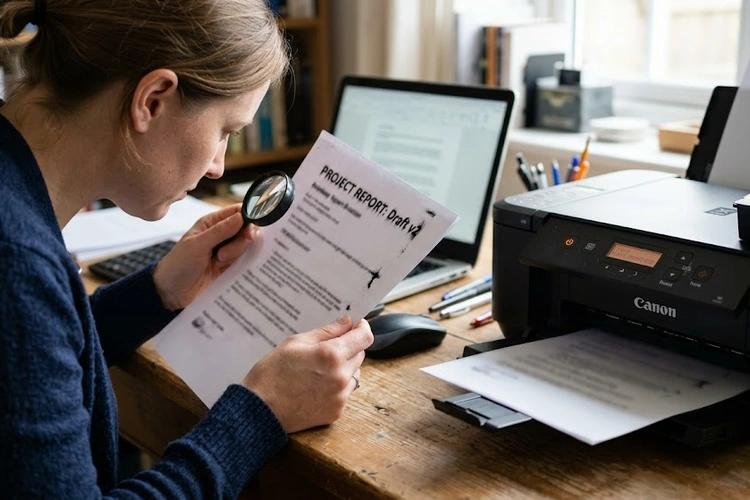
Printer Producing Blurry Text? 7 Ways to Improve Print Quality
A printer should produce clear text and sharp images, but sometimes printed documents appear blurry, faded, or smudged. This can make important documents difficult to read and affect the overall appearance of your prints.
Blurry printing does not always indicate a damaged printer. Incorrect print settings, unsuitable paper, clogged printheads, low-quality cartridges, or alignment problems may be responsible.
Here are seven methods to help improve your printer’s output quality.
1. Check the Print Quality Settings
Your printer may be configured to use a lower-quality printing mode to save ink or toner.
To adjust the settings:
- Open the document you want to print.
- Select Print.
- Open Printer Properties or Printing Preferences.
- Find the Print Quality or Resolution option.
- Select Normal, High, or Best quality.
- Save the settings and print a test page.
Higher-quality settings may improve text and image clarity, although they can increase printing time and ink consumption.
2. Clean the Printhead
For inkjet printers, clogged printhead nozzles can cause missing lines, uneven text, and blurry output.
Follow these steps:
- Open your printer’s maintenance software.
- Find the Printhead Cleaning option.
- Start the cleaning process.
- Wait for the procedure to finish.
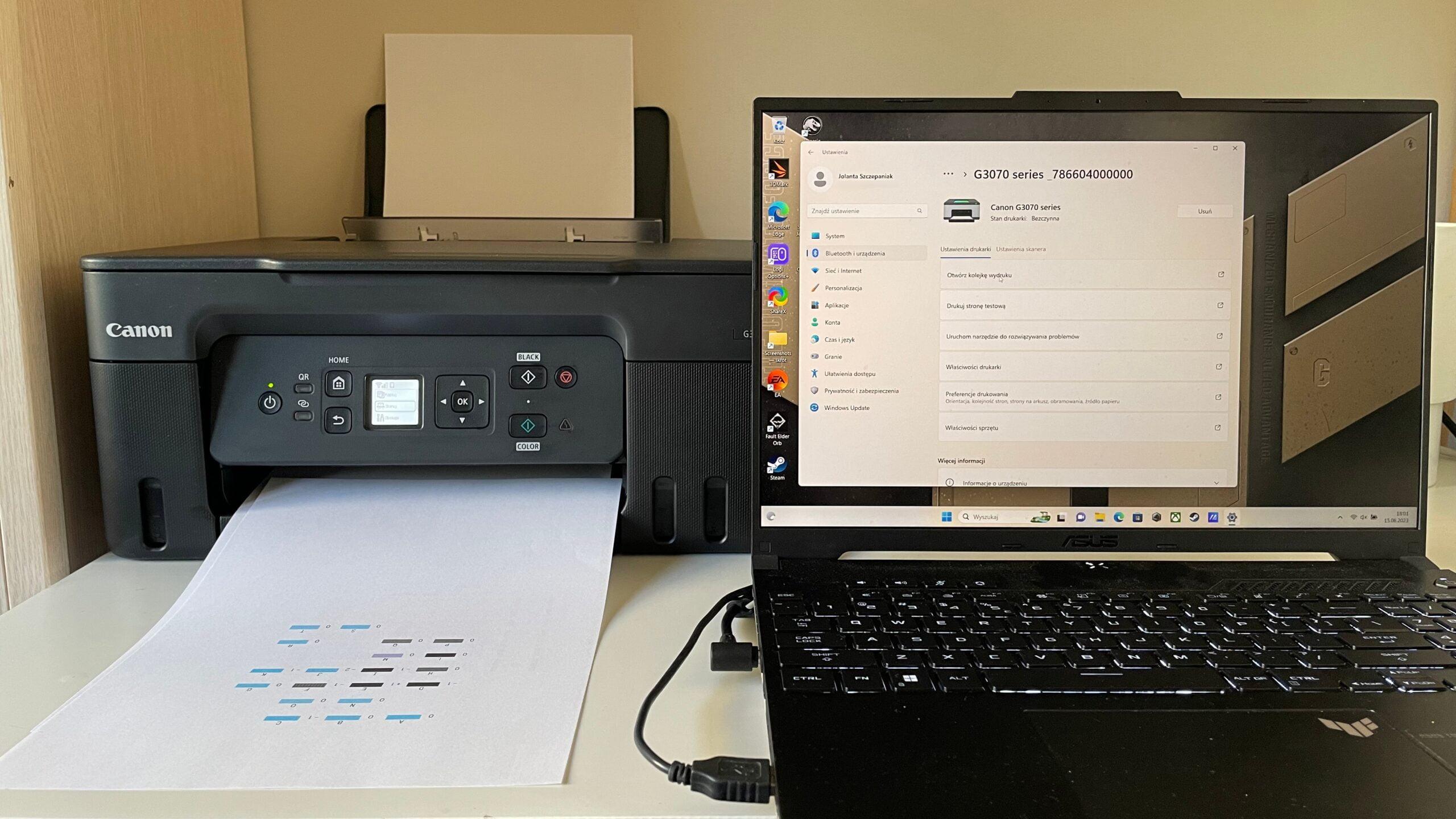
- Print a nozzle check pattern.
- Repeat only if recommended by the manufacturer.
Avoid running excessive cleaning cycles because they can consume significant amounts of ink.
3. Check Ink or Toner Cartridge Condition
Low, damaged, or improperly installed cartridges may affect printing quality.
Check whether:
- Ink or toner levels are sufficient.
- Cartridges are installed correctly.
- Protective packaging has been removed.
- There are no visible signs of leakage or damage.
- The installed cartridges are compatible with your printer.
For laser printers, check the toner cartridge and imaging components according to the manufacturer’s instructions.
4. Select the Correct Paper Type
Using unsuitable paper can affect how ink or toner appears on the printed surface.
For better results:
- Use paper recommended for your printer.
- Select the correct paper type in printing preferences.
- Avoid damp, wrinkled, or damaged sheets.
- Use photo paper for high-quality photo printing.
- Store paper in a clean and dry location.
Make sure the paper selected in your printer settings matches the paper loaded in the tray.
5. Run the Printer Alignment Utility
Misaligned printheads or cartridges may cause text to appear uneven, doubled, or unclear.
Many inkjet printers include an automatic alignment feature.
To use it:
- Open the printer maintenance utility.
- Find Printhead Alignment or Align Cartridges.
- Follow the instructions on the screen.
- Print the alignment page if requested.
- Complete the process using the recommended pattern or settings.
Alignment options vary depending on the printer model.
6. Update Your Printer Driver
An outdated or incompatible printer driver may sometimes affect printing output and available quality settings.
To check for updates:
- Visit the printer manufacturer’s official website.
- Search for your exact printer model.
- Select the correct operating system.
- Download the latest compatible driver.
- Install it by following the instructions.
- Restart your computer if required.
Using the correct driver can help ensure that your computer communicates properly with the printer.
7. Check the Original Document
Sometimes, the problem is not caused by the printer itself. Low-resolution images, poor document formatting, or compressed files may produce unclear printouts.
Try these steps:
- Print a different document.
- Use a higher-resolution source image.
- Check the document’s font size.
- Avoid enlarging small or low-quality images.
- Compare the printed result with the on-screen version.
If only one document prints poorly, review that file before making changes to your printer.
Tips to Maintain Clear Printing Results
- Clean printer components according to manufacturer guidance.
- Use suitable paper and compatible cartridges.
- Avoid leaving inkjet printers unused for long periods.
- Keep drivers and printer software updated.
- Perform regular maintenance checks.
- Use appropriate print quality settings for each task.
Final Thoughts
Blurry text and unclear printouts can result from several different causes, including printhead problems, unsuitable paper, cartridge issues, or incorrect quality settings.
Start with the simplest checks, such as selecting the right paper and adjusting print quality. If the problem continues, clean the printhead, run alignment, and check the cartridge condition.
Regular maintenance can help maintain consistent and readable printing results.
Frequently Asked Questions
1. Why does my printer print blurry text even with new ink cartridges?
The issue may be caused by clogged nozzles, incorrect alignment, unsuitable paper, or low print quality settings.
2. Can incorrect paper settings make printing blurry?
Yes. Selecting the wrong paper type may affect how ink or toner is applied to the page.
3. How often should I clean my printer’s printhead?
Clean it when you notice missing lines, faded output, or other print quality problems. Follow the maintenance recommendations for your printer model.
4. Why do printed images look blurry but text looks clear?
The original image may have low resolution, or the document may be using compression that reduces image quality.