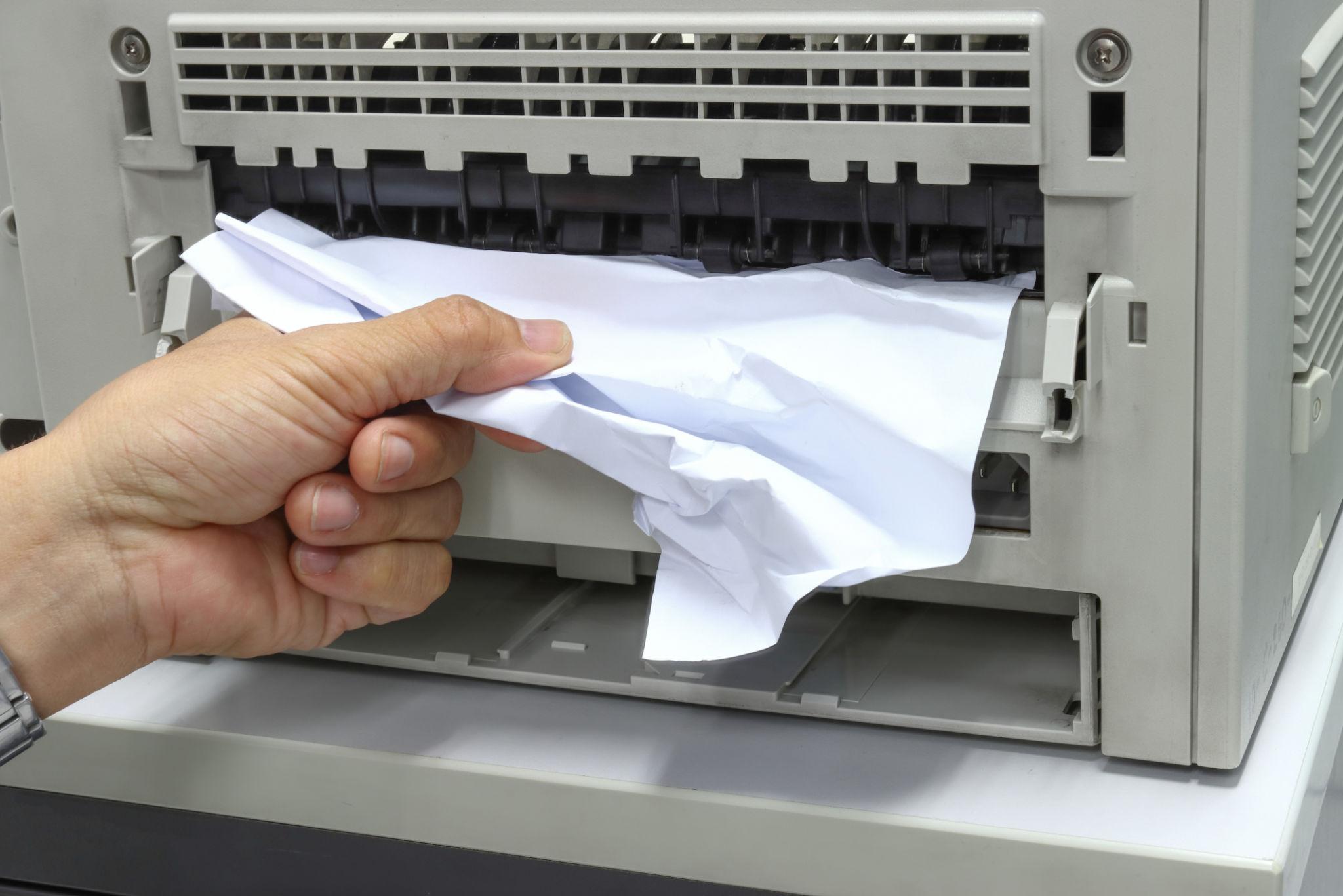
Printer Paper Keeps Jamming? 7 Easy Ways to Fix Paper Jams
A paper jam can interrupt your work and prevent your printer from completing an important document. Sometimes, a sheet gets stuck inside the machine, while in other cases, the printer displays a jam warning even after the visible paper has been removed.
Paper jams can happen because of incorrectly loaded sheets, damaged paper, dirty rollers, overloaded trays, or internal feed problems.
Whether you use an HP, Canon, Epson, Brother, or another printer, these troubleshooting methods can help you identify the cause and restore normal printing.
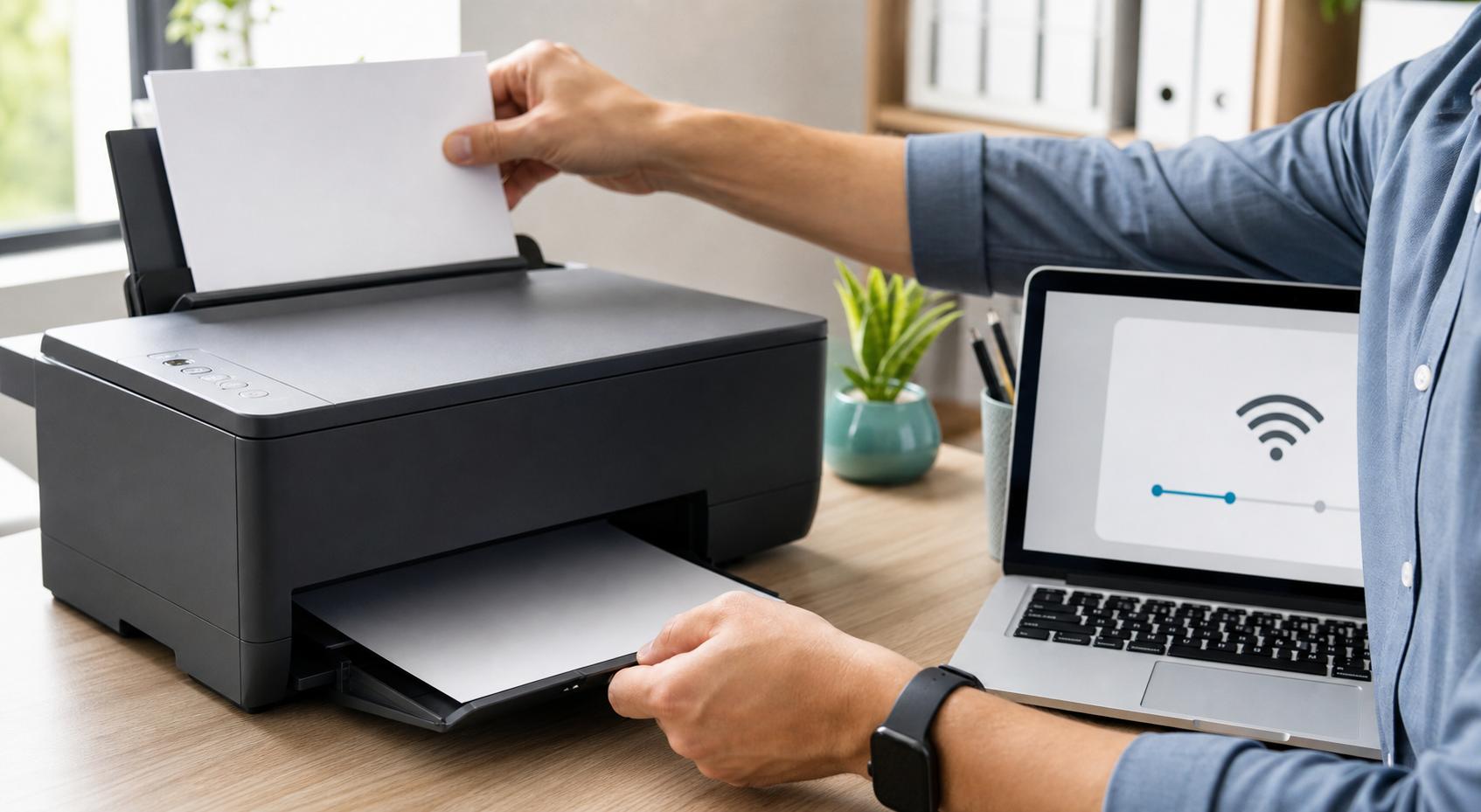
1. Remove the Jammed Paper Carefully
Start by checking where the paper is stuck. Look inside the paper input tray, output area, and accessible rear panel.
Follow these steps:
- Turn off the printer.
- Disconnect the power cable if the manufacturer recommends doing so.
- Open the accessible paper jam compartments.
- Gently pull out the stuck sheet in the direction of the paper path.
- Check for small torn pieces left inside.
- Close all panels before restarting the printer.
Avoid pulling paper forcefully because it may tear or damage internal components.
2. Check the Paper Loading Position
Incorrectly positioned paper can cause feeding problems and repeated jams.
Make sure the sheets are properly aligned inside the input tray. Adjust the paper guides so they fit the edges without pressing too tightly against the stack.
Do not load more sheets than the tray’s recommended capacity.
3. Use the Correct Paper Type
Paper that is too thick, too thin, curled, damp, or damaged may not move smoothly through the printer.
For better results:
- Use paper supported by your printer model.
- Avoid folded or wrinkled sheets.
- Do not mix different paper sizes in one stack.
- Store paper in a dry place.
- Check the manufacturer’s recommended paper weight.
Using suitable paper can reduce feeding problems.
4. Inspect and Clean the Paper Feed Rollers
Paper feed rollers help pull sheets into the printer. Dust, paper residue, and worn roller surfaces can affect their grip.
If your printer’s manual allows roller cleaning, follow the recommended procedure.
Generally:
- Turn off the printer.
- Access the paper feed rollers as instructed by the manufacturer.
- Use a clean, lint-free cloth slightly dampened with water if permitted.
- Gently clean accessible roller surfaces.
- Allow them to dry completely before using the printer.
Never pour liquid directly into the printer or force access to internal parts.
5. Check for Small Pieces of Paper Inside
Sometimes the main jammed sheet comes out, but small pieces remain inside the paper path. These fragments can trigger another jam warning.
Use a flashlight to inspect accessible areas, including the rear access panel and paper output path.
Remove only pieces that are easy to reach. If paper is trapped near delicate internal components, seek professional assistance.
6. Restart the Printer and Clear the Error
After removing the paper, the printer may continue displaying a jam warning because its internal status has not refreshed.
Try the following:
- Turn off the printer.
- Make sure all access panels are properly closed.
- Check that no paper remains in the tray or output area.
- Restart the printer.
- Wait for the device to complete its initialization.
- Print a test page.
If the warning remains, consult your printer’s manual for model-specific reset instructions.
7. Check for Worn or Damaged Printer Parts
If paper jams happen repeatedly despite correct loading and cleaning, a mechanical component may be causing the issue.
Possible causes include worn feed rollers, damaged paper guides, misaligned components, or problems with the paper detection mechanism.
Avoid dismantling the printer without the necessary technical knowledge. A qualified technician can inspect and replace faulty components when required.
How to Prevent Printer Paper Jams
A few simple habits can help reduce future paper-feeding problems:
- Keep the paper tray clean and properly aligned.
- Use paper recommended for your printer.
- Avoid overfilling the input tray.
- Store paper away from moisture.
- Remove damaged or curled sheets.
- Clean accessible feed rollers according to the manufacturer’s instructions.
- Perform regular printer maintenance.
Final Thoughts
Repeated paper jams can be frustrating, but the cause is often related to paper quality, incorrect loading, or dirty feed rollers.
Start by removing any stuck sheets carefully and checking the paper tray. If the problem continues, inspect accessible rollers and look for signs of damaged components.
Regular maintenance and correct paper handling can help keep your printer running smoothly.
Frequently Asked Questions
1. Why does my printer keep saying paper jam when there is no paper inside?
Small paper fragments, blocked sensors, or incorrect panel positioning may cause a paper jam warning even when no complete sheet is visible.
2. Can overloading the paper tray cause paper jams?
Yes. Loading more paper than the recommended capacity can interfere with proper sheet feeding.
3. Why does paper get stuck halfway through printing?
This may happen because of dirty or worn feed rollers, unsuitable paper, or an obstruction along the paper path.
4. Should I pull jammed paper out of the printer?
Yes, if it is easily accessible. Pull it gently in the direction of the paper path and avoid using excessive force.