Printer Not Recognizing Ink Cartridge? 7 Ways to Fix It
You install a new ink cartridge, close the printer cover, and expect everything to work. Instead, your printer displays an error saying that the cartridge is missing, unsupported, or not recognized.
This issue can occur even when the cartridge is brand new. Incorrect installation, protective tape, dirty electrical contacts, incompatible cartridges, or printer software problems may prevent the device from detecting it.
Here are seven methods to help resolve cartridge recognition problems on different printer models.
1. Check Whether the Cartridge Is Installed Correctly
An incorrectly positioned cartridge may prevent the printer from detecting it.
Try these steps:
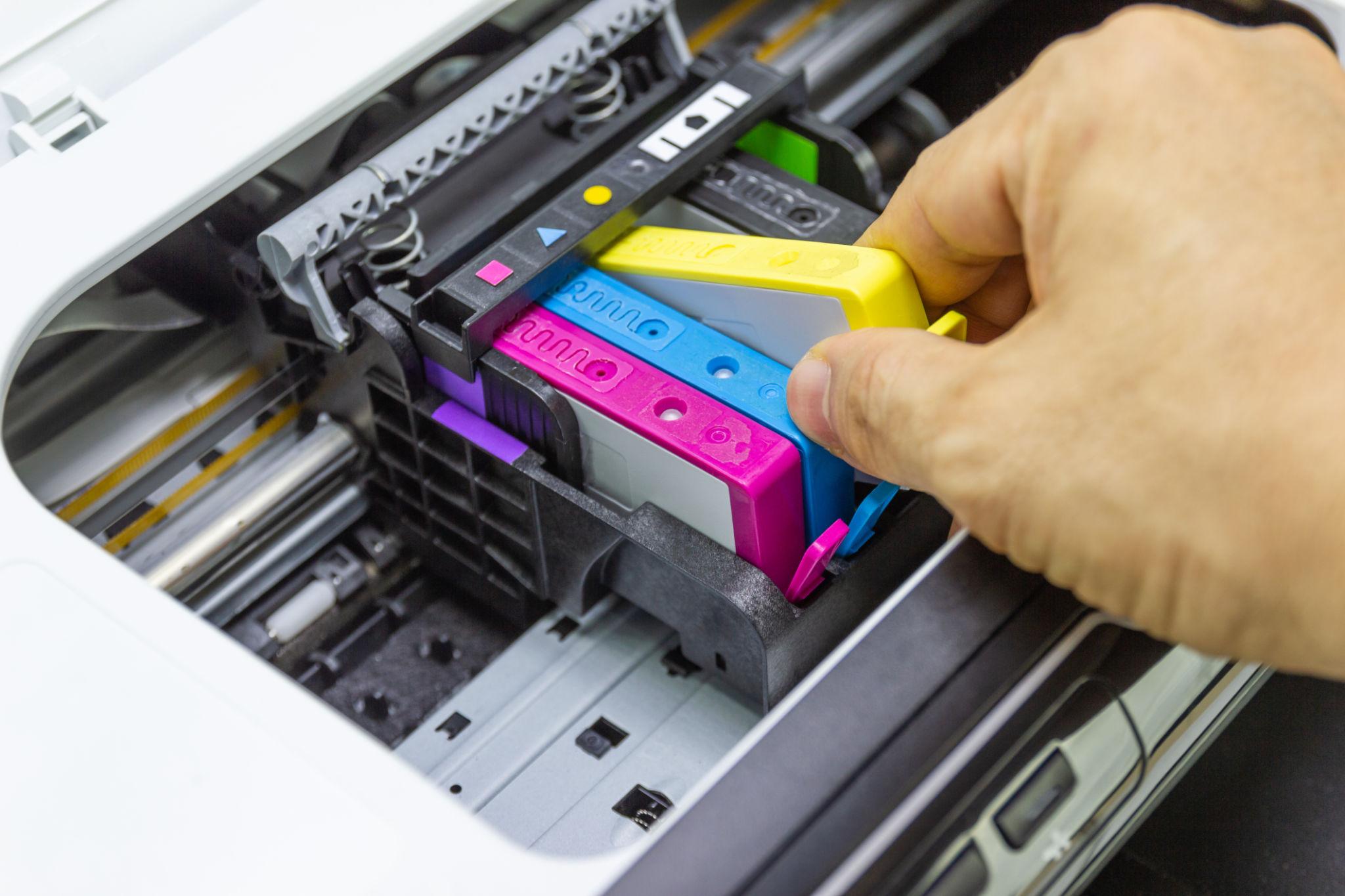
- Turn on your printer and open the cartridge access panel.
- Wait until the cartridge holder stops moving.
- Carefully remove the affected cartridge.
- Check its position and alignment.
- Reinstall it until it sits securely in its designated slot.
- Close the access panel and check the printer display.
Make sure each cartridge is installed in the correct colour or black ink compartment.
2. Remove the Protective Plastic Tape
New ink cartridges often come with protective tape covering the ink outlet or electrical contacts.
If this packaging material is not removed correctly, the printer may fail to recognize the cartridge or deliver ink properly.
Remove only the protective material identified in the cartridge installation instructions. Avoid touching the ink nozzles or electrical contacts.
3. Clean the Cartridge Electrical Contacts
Dust, ink residue, or fingerprints on the cartridge contacts can interfere with communication between the cartridge and printer.
How to clean them:
- Turn off the printer.
- Remove the cartridge carefully.
- Identify the electrical contact area.
- Use a clean, lint-free cloth to gently wipe the contacts.
- Allow them to dry completely.
- Reinstall the cartridge and restart the printer.
Do not use excessive moisture or scrape the contact surface.
4. Verify Cartridge Compatibility
Not every cartridge works with every printer. Even cartridges from the same manufacturer may have different model numbers and compatibility requirements.
Before installing a replacement, check:
- Your exact printer model number.
- The cartridge number recommended for your device.
- Whether the cartridge is designed for your printer’s region.
- Whether the cartridge is genuine or compatible.
- Whether the packaging matches the required cartridge specification.
Using an unsupported cartridge may result in a recognition error.
5. Restart Your Printer
Sometimes, the printer may not refresh its cartridge status immediately after installation.
Try restarting the device:
- Cancel any active printing tasks.
- Turn off the printer.
- Disconnect the power cable if recommended by the manufacturer.
- Wait approximately one minute.
- Reconnect the cable and switch on the printer.
- Check whether the cartridge error has disappeared.
This can help resolve temporary detection issues.
6. Check for Printer Firmware Updates
Printer firmware controls several device functions, including cartridge detection and communication.
An outdated or problematic firmware version may sometimes contribute to cartridge-related errors.
Visit the printer manufacturer’s official website and check whether a suitable firmware update is available for your exact model.
Follow the manufacturer’s installation instructions and avoid interrupting the update process.
7. Test With Another Compatible Cartridge
If the error continues, the cartridge itself may be damaged or defective.
If possible, test the printer with another known-compatible cartridge.
- If the replacement works, the original cartridge may be faulty.
- If the same error appears, the issue may involve the printer’s cartridge contacts, holder, or internal hardware.
If the problem persists, consider having the device inspected by a qualified technician.
How to Avoid Cartridge Recognition Problems
Follow these simple practices when replacing printer cartridges:
- Always check cartridge compatibility before purchasing.
- Handle cartridges carefully during installation.
- Remove protective packaging according to the instructions.
- Keep electrical contacts clean and dry.
- Avoid touching ink nozzles.
- Store unused cartridges in their original packaging.
- Follow the printer manufacturer’s maintenance recommendations.
Final Thoughts
A printer that does not recognize an ink cartridge can be frustrating, particularly when you have just installed a replacement.
Start by checking the cartridge installation and removing any protective packaging. If the problem continues, inspect the electrical contacts, verify compatibility, and check for available firmware updates.
Identifying the actual cause can help you avoid unnecessary cartridge replacements and repair expenses.
Frequently Asked Questions
1. Why is my printer not recognizing a brand-new cartridge?
The cartridge may be incorrectly installed, incompatible with your printer, or still covered with protective packaging material.
2. Can a printer reject compatible third-party cartridges?
Yes. Some printers may display compatibility or recognition warnings when using third-party cartridges. Compatibility depends on the printer model and cartridge specifications.
3. Why does my printer say the cartridge is empty after replacing it?
The printer may not have updated its ink status, or it may be experiencing a cartridge detection issue. Reinstalling the cartridge and restarting the printer may help.
4. Do I need to replace my printer if it does not recognize cartridges?
Not necessarily. The problem may be caused by the cartridge, electrical contacts, or internal cartridge detection components. Try basic troubleshooting before considering replacement.