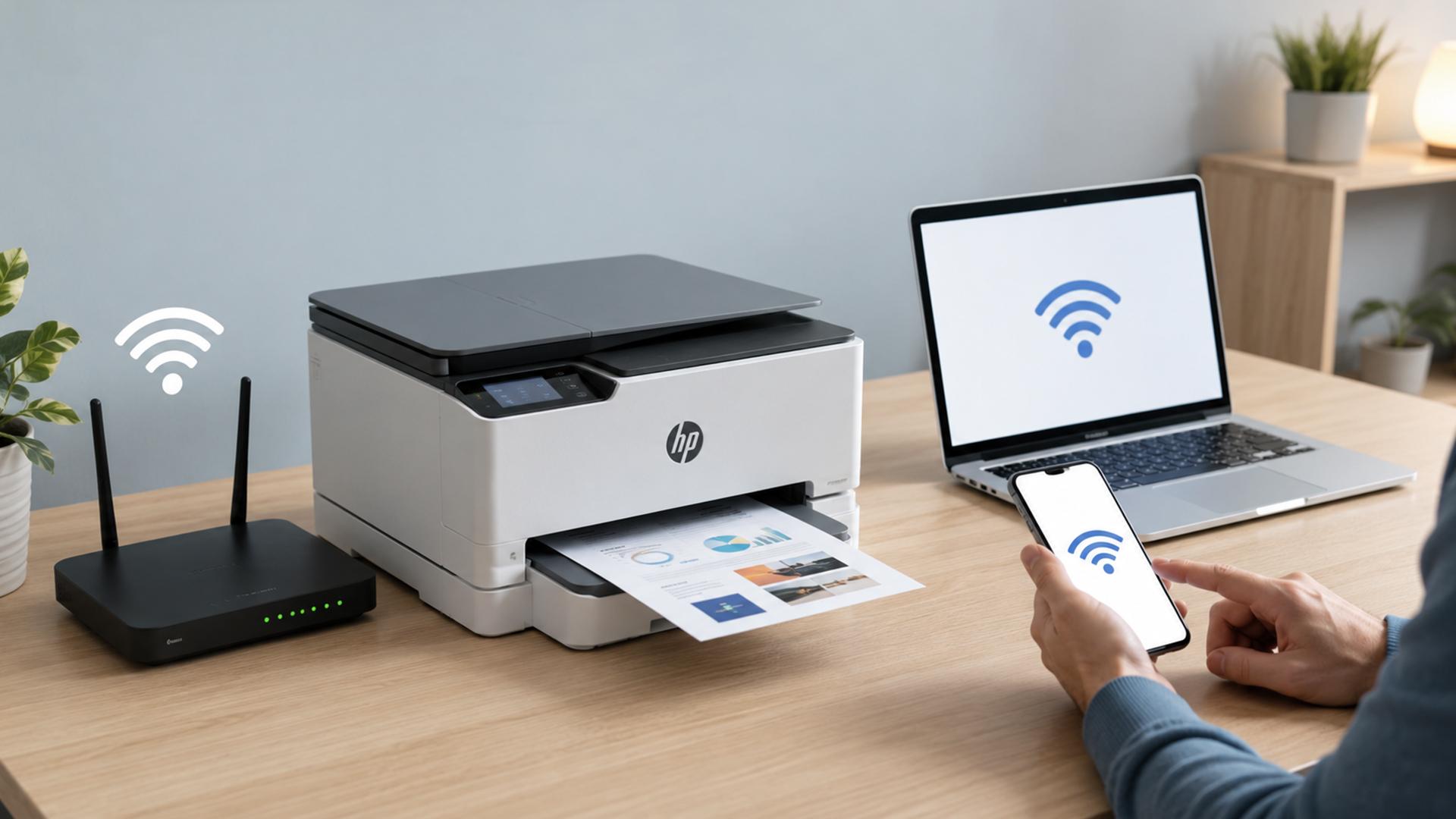
Printer Keeps Disconnecting from Wi-Fi? 7 Ways to Fix Wireless Connection Problems
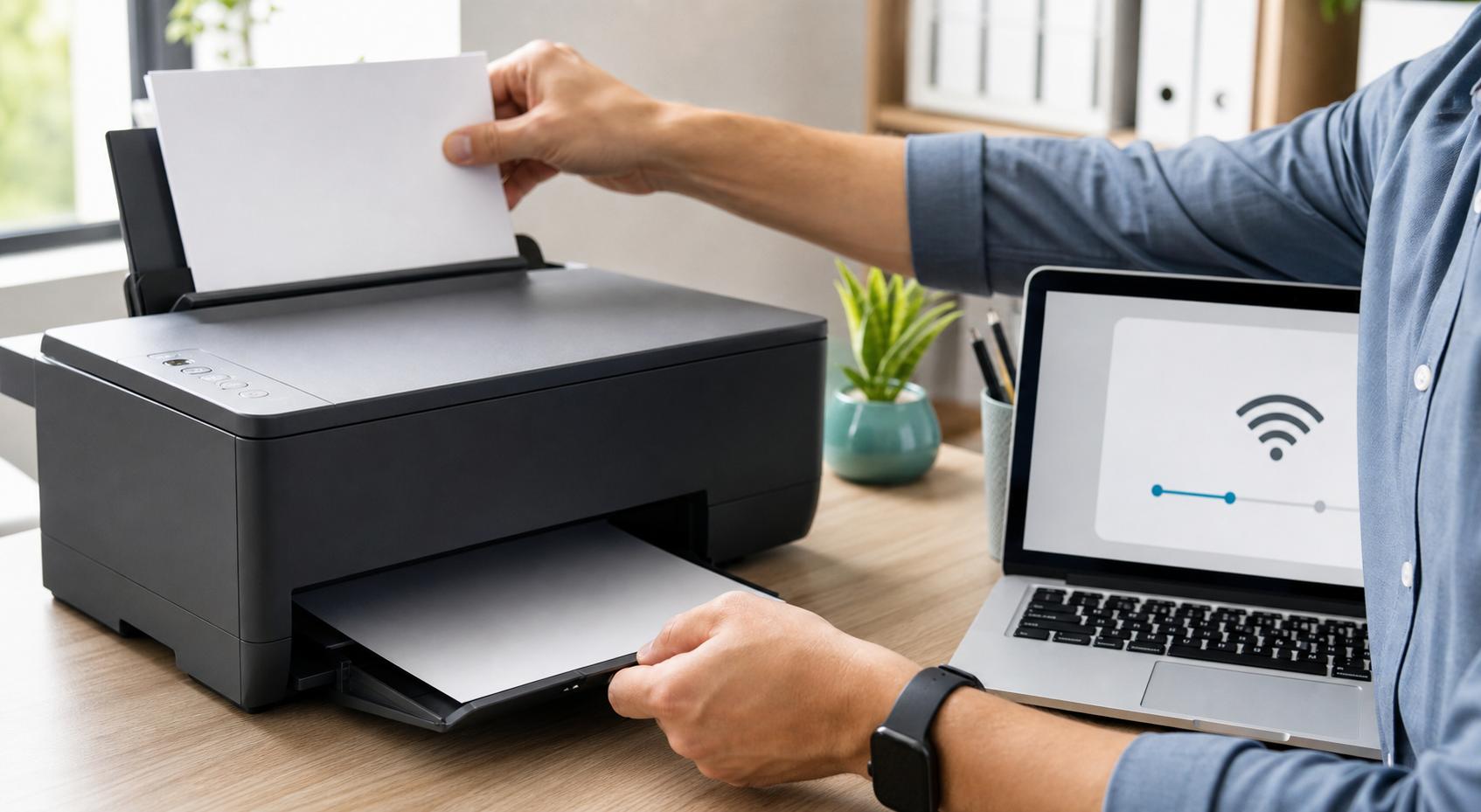
A wireless printer makes it easy to print documents from laptops, desktop computers, and mobile devices without connecting cables. However, frequent Wi-Fi disconnections can interrupt printing and cause your printer to appear offline.
This problem may occur because of a weak wireless signal, router issues, incorrect network settings, outdated printer firmware, or communication problems between your printer and computer.
If your printer keeps disconnecting from Wi-Fi, try these seven troubleshooting methods to identify and resolve the issue.
1. Restart Your Printer and Wi-Fi Router
Temporary network problems can interrupt communication between your printer and wireless router. Restarting both devices may help restore the connection.
Follow these steps:
- Turn off your printer.
- Unplug your Wi-Fi router from its power source.
- Wait approximately 30 seconds.
- Reconnect the router and allow it to restart completely.
- Turn your printer back on.
- Check whether the printer reconnects to your wireless network.
Once both devices are ready, try printing a test page.
2. Make Sure Your Printer Is Connected to the Correct Wi-Fi Network
Your printer and computer generally need to be connected to the same local network for normal wireless printing.
Sometimes, a printer may connect to an old network or a different Wi-Fi connection after router settings are changed.
To check the connection:
- Open your printer’s wireless or network settings.
- Find the Wi-Fi connection information.
- Check the network name (SSID).
- Compare it with the network connected to your computer.
- If necessary, reconnect your printer to the correct network.
If you recently changed your Wi-Fi password, update the saved wireless credentials on your printer as well.
3. Move Your Printer Closer to the Router
A weak wireless signal can cause frequent disconnections, especially when your printer is located far from the router.
Walls, furniture, metal objects, and other electronic devices may also interfere with wireless signals.
Try these adjustments:
- Place your printer closer to the Wi-Fi router.
- Avoid keeping the printer inside closed cabinets.
- Keep it away from large metal objects.
- Avoid placing it near devices that may cause wireless interference.
- Check the Wi-Fi signal strength using your printer’s network settings, if available.
If the connection becomes more stable after moving the printer, weak signal strength may have been contributing to the problem.
4. Check Your Router’s Wi-Fi Band Settings
Some older wireless printers support only the 2.4 GHz Wi-Fi band, while newer routers may offer both 2.4 GHz and 5 GHz connections.
If your printer does not support the network band you are trying to use, it may fail to connect or remain disconnected.
To troubleshoot this issue:
- Check your printer’s wireless specifications.
- Open your router’s Wi-Fi settings.
- Confirm whether the router provides a 2.4 GHz network.
- If supported by your printer, connect it to the compatible network.
- Enter the correct Wi-Fi password.
Some routers combine both frequency bands under one network name. If your printer has connection problems, check your router manufacturer’s instructions for configuring compatible wireless settings.
5. Update Your Printer’s Firmware
Outdated printer firmware can sometimes cause wireless connectivity problems or compatibility issues with newer router configurations.
Check whether a firmware update is available for your printer model.
Follow these steps:
- Visit your printer manufacturer’s official support website.
- Search for your exact printer model.
- Open its software or firmware downloads section.
- Check for available firmware updates.
- Follow the manufacturer’s installation instructions.
Some printers also support firmware updates through their built-in control panels or manufacturer applications.
Keep your printer powered on and avoid interrupting the update process.
6. Remove and Reconnect Your Wireless Printer
If your computer continues to show the printer as offline even though it is connected to Wi-Fi, removing and adding the printer again may help resolve the communication problem.
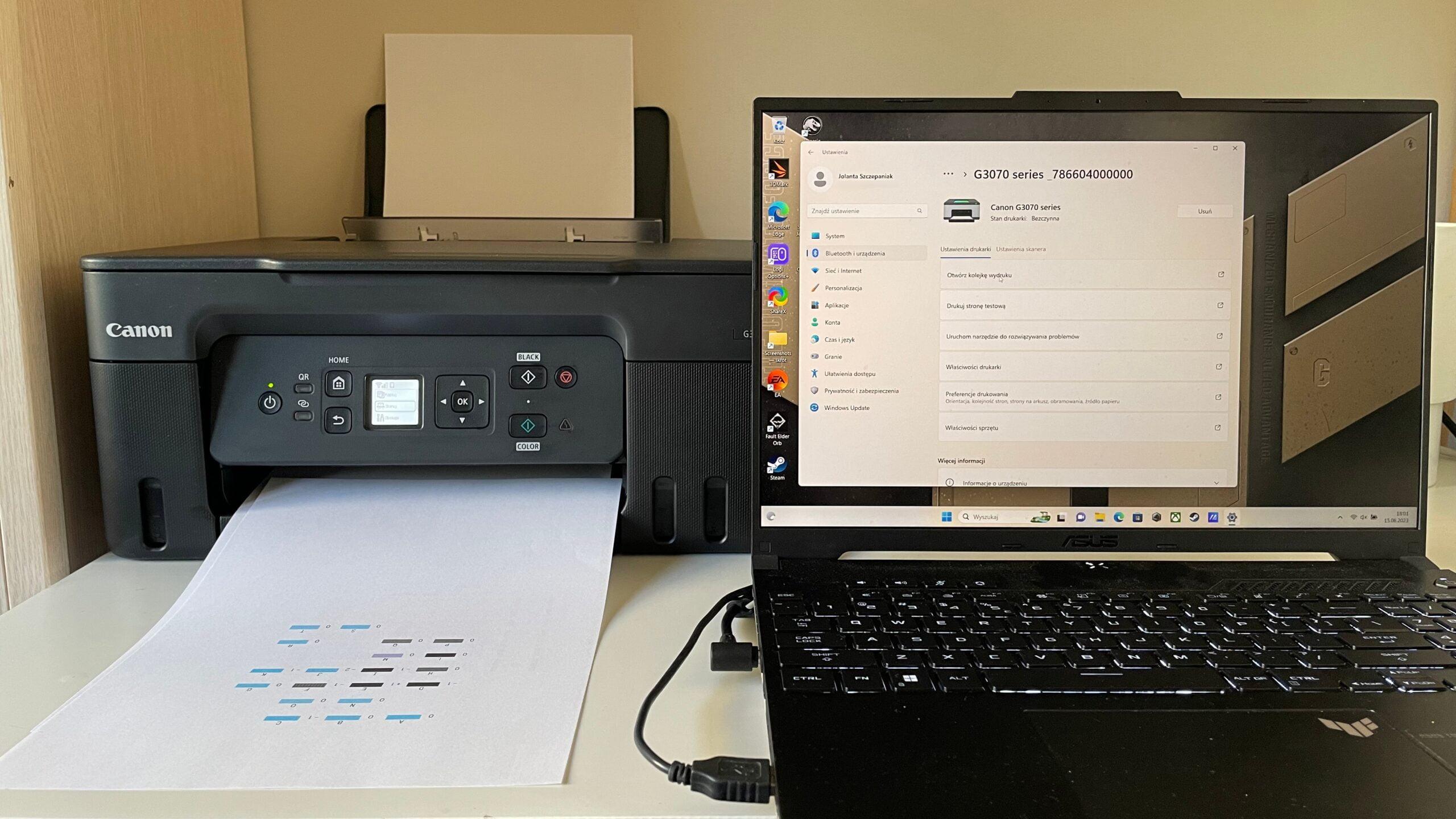
On Windows:
- Open Settings.
- Select Bluetooth & devices.
- Choose Printers & scanners.
- Select your wireless printer.
- Click Remove.
- Restart your computer.
- Return to Printers & scanners.
- Select Add device.
- Follow the instructions to add your printer again.
Make sure your printer is connected to Wi-Fi before starting the setup process.
7. Check the Printer’s IP Address
Wireless printers use an IP address to communicate with other devices on a network. If the printer’s IP address changes, a computer using an old address may no longer be able to communicate with it.
To investigate:
- Open your printer’s network settings.
- Find its current IP address.
- Print a network configuration report if your printer supports this feature.
- Check whether your computer can communicate with the printer using the current network information.
- If your computer or printer uses a manually configured printer port, verify that it points to the correct address.
For a more stable setup, you can consider configuring a DHCP reservation through your router. This helps the router assign the same IP address to your printer.
Follow your router manufacturer’s instructions before changing network settings.
Frequently Asked Questions
Why does my wireless printer keep disconnecting from Wi-Fi?
Common reasons include weak wireless signals, router interruptions, incorrect network settings, incompatible Wi-Fi bands, and outdated printer firmware.
Why does my printer show offline even when Wi-Fi is connected?
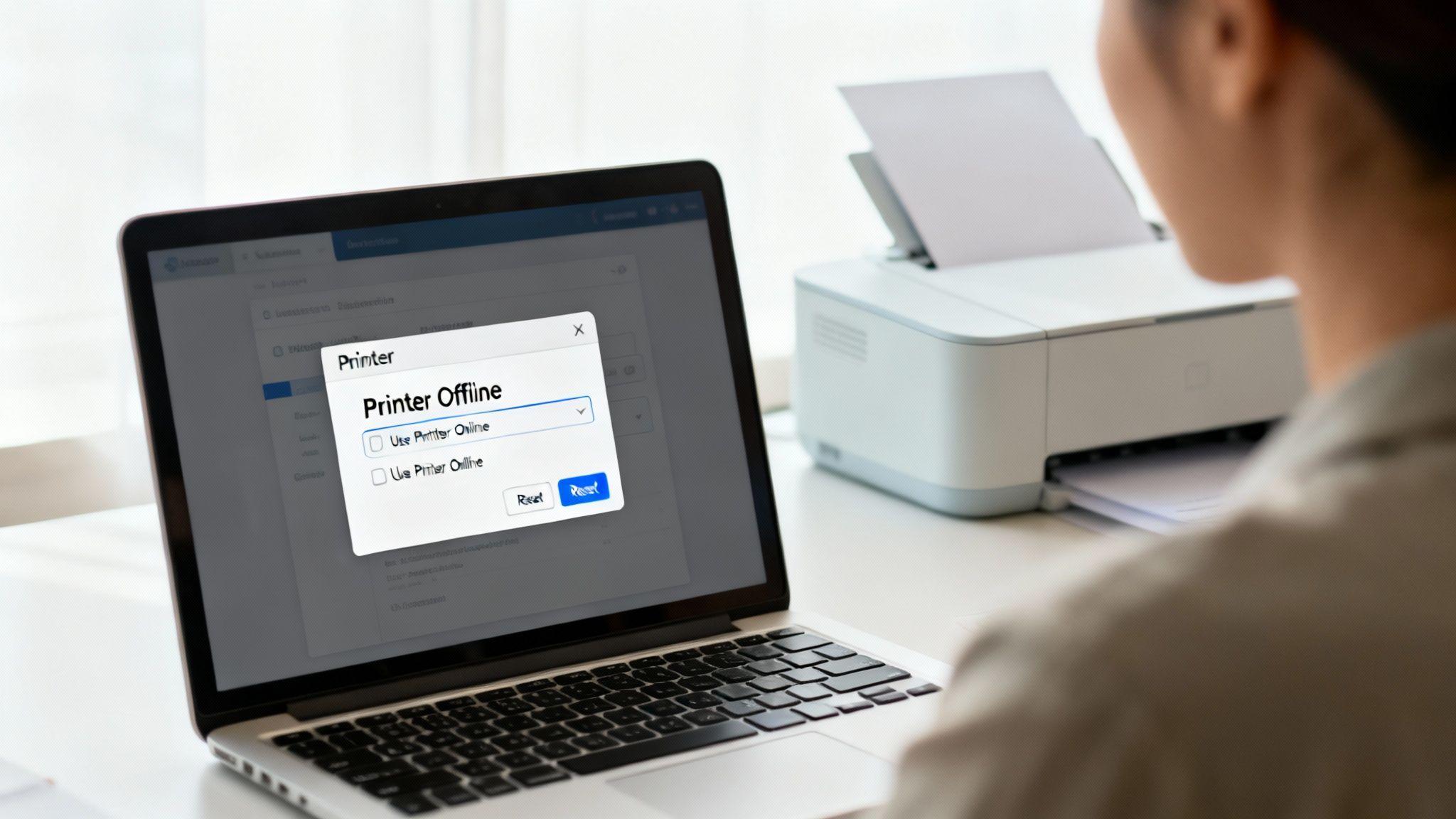
Your printer may be connected to the router but unable to communicate properly with your computer. Incorrect printer settings, an outdated IP address, or software issues can cause this message.
Can a weak Wi-Fi signal affect printer connectivity?
Yes. If your printer receives an unstable wireless signal, it may disconnect frequently or respond slowly to print requests. Moving it closer to the router may improve connectivity.
Does changing my Wi-Fi password affect my printer?
Yes. When you change your wireless password, the printer may lose access to the saved network. You will need to update the Wi-Fi credentials in the printer’s network settings.
Should I reset my printer’s network settings?
A network reset can help when other troubleshooting methods fail. However, it removes saved wireless settings, so you will need to connect the printer to your Wi-Fi network again.
Final Thoughts
Frequent Wi-Fi disconnections can make wireless printing inconvenient, but the issue is often related to network settings or communication problems rather than printer hardware.
Start by restarting your router and printer, checking the wireless network, and improving signal strength. If the problem continues, review firmware, printer installation, and IP address settings.
Following these steps can help you identify the cause of unstable wireless connectivity and restore a more reliable printing experience.