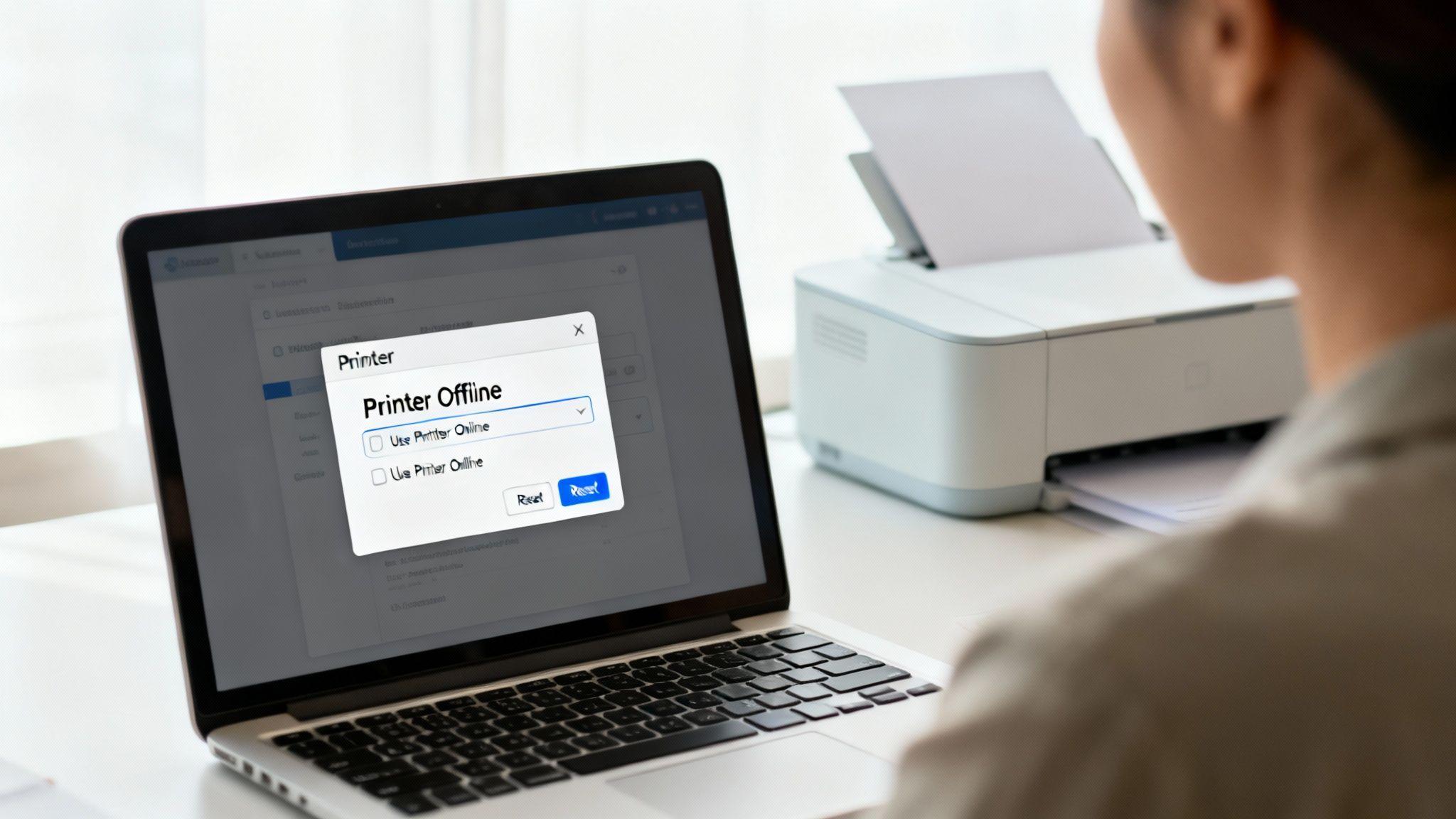
What Does Printer Offline Mean? 7 Ways to Bring Your Printer Back Online
Seeing an offline message when you want to print a document can be frustrating. Even if your printer is switched on, Windows may show that the device is unavailable or disconnected.
The printer offline message generally means your computer cannot communicate properly with the printer. This can happen because of connection problems, incorrect printer settings, a stuck print queue, or outdated drivers.
Fortunately, you can try several troubleshooting methods to bring your printer back online. Here are seven practical solutions for Windows users.
1. Check Your Printer’s Power and Connection
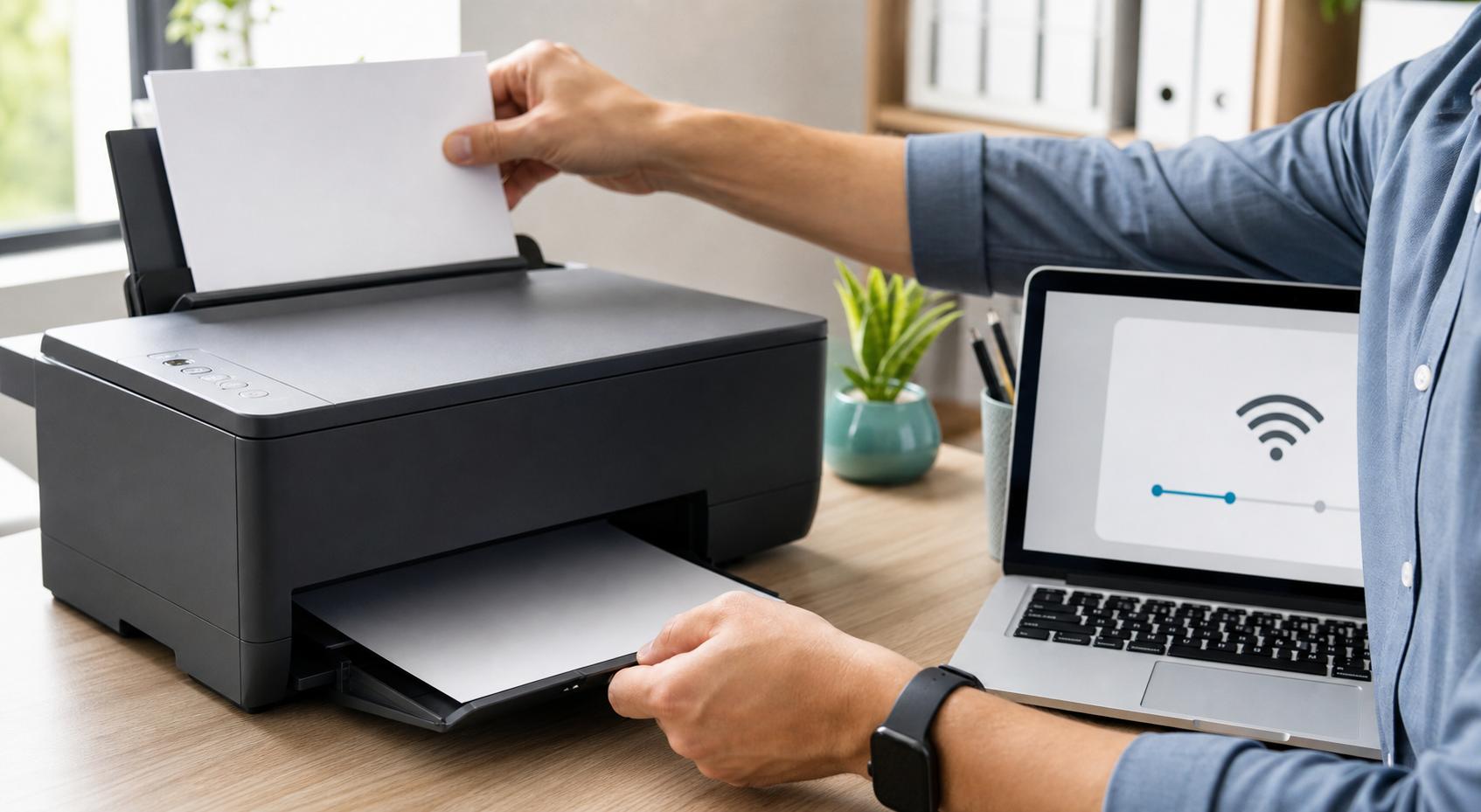
Start by checking whether your printer is switched on and properly connected to your computer or network.
For a USB printer:
- Make sure the printer is powered on.
- Check that the USB cable is securely connected at both ends.
- Try connecting the cable to another USB port.
- Check whether Windows detects the printer.
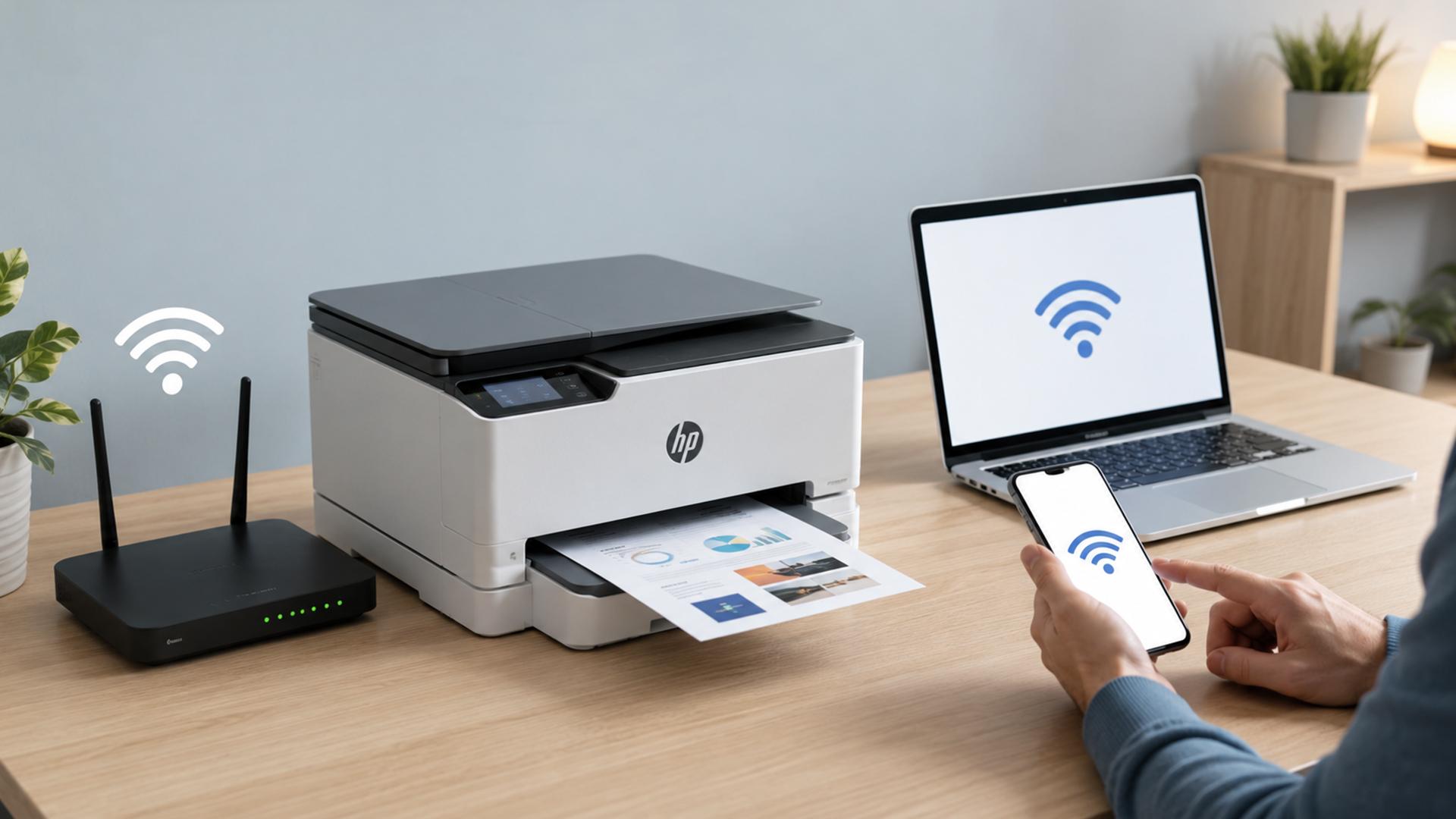
For a wireless printer:
- Confirm that the printer is connected to Wi-Fi.
- Check whether your computer is connected to the same local network.
- Make sure the router is working properly.
- Restart your printer if the connection appears unstable.
Once you have checked the connection, try printing a test page.
2. Disable the Use Printer Offline Setting
Sometimes, Windows may have the Use Printer Offline option enabled. This setting can prevent print jobs from being sent to an otherwise available printer.
To check it:
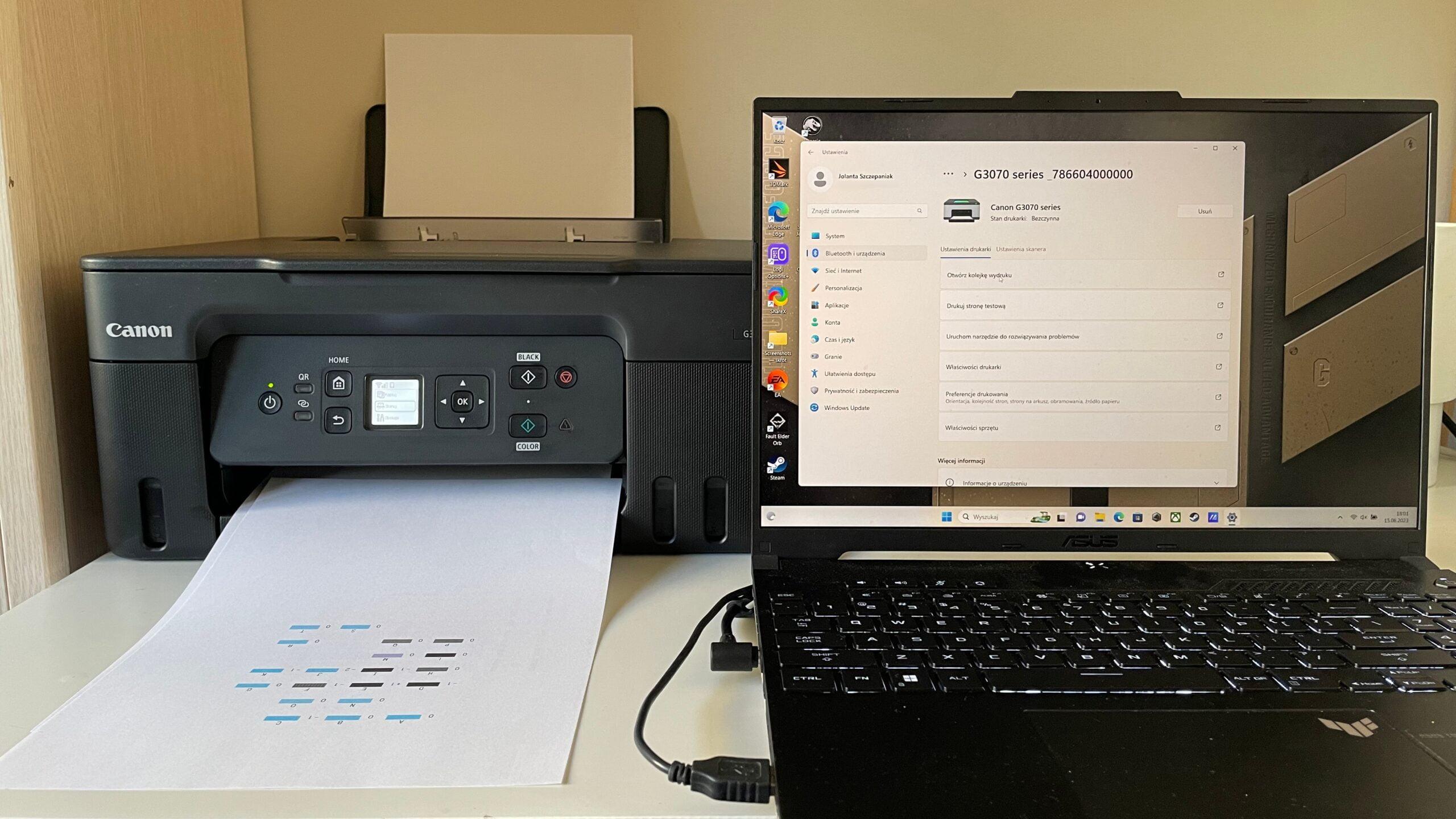
- Open Settings on your Windows computer.
- Select Bluetooth & devices.
- Open Printers & scanners.
- Select your printer.
- Choose Open print queue.
- Click the Printer menu in the queue window.
- If Use Printer Offline is selected, click it to disable the option.
If the printer was manually set to offline mode, this may restore normal printing.
3. Set Your Printer as the Default Device
If multiple printers are installed on your computer, Windows may send documents to the wrong device.
Setting the correct printer as your default can help avoid this problem.
Follow these steps:
- Open Windows Settings.
- Select Bluetooth & devices.
- Choose Printers & scanners.
- Turn off Let Windows manage my default printer, if this option is enabled.
- Select the printer you want to use.
- Click Set as default, if available.
Now try printing your document again and make sure the correct printer is selected in the print window.
4. Clear Stuck Printing Jobs
A document stuck in the print queue can prevent other print jobs from processing correctly.
To clear the queue:
- Open Settings.
- Go to Bluetooth & devices > Printers & scanners.
- Select your printer.
- Open the print queue.
- Review the pending documents.
- Cancel the stuck print jobs.
- Wait for the queue to clear.
After removing the pending jobs, restart your printer and try sending a new document.
If jobs cannot be cancelled normally, restarting the Print Spooler service may help.
5. Restart the Print Spooler Service
The Print Spooler is a Windows service that manages print jobs and communication with installed printers. If it stops responding, your printer may appear offline.
You can restart it using these steps:
- Press Windows + R.
- Type
services.mscand press Enter. - Find Print Spooler in the services list.
- Right-click the service.
- Select Restart.
- Wait for the service to become active again.
- Try printing another document.
If the service is stopped, select Start instead of Restart.
6. Update or Reinstall Your Printer Driver
An outdated, corrupted, or incompatible printer driver can prevent Windows from communicating with your device.
To update your driver:
- Right-click the Start button.
- Open Device Manager.
- Expand Printers or Print queues.
- Right-click your printer.
- Select Update driver.
- Choose Search automatically for drivers.
If the problem continues, visit your printer manufacturer’s official support website and download the compatible driver for your exact model and Windows version.
You can also remove and add the printer again through Windows Settings if the existing installation appears corrupted.
7. Run the Windows Printer Troubleshooter
Windows provides troubleshooting tools that can identify certain printing and communication problems.
To run the printer troubleshooter:
- Open Settings.
- Select System.
- Choose Troubleshoot.
- Open Other troubleshooters.
- Find the Printer troubleshooter.
- Select Run, if available.
- Follow the instructions displayed on your screen.
The troubleshooter may detect connection problems, incorrect settings, or other common printing issues and suggest possible fixes.
Frequently Asked Questions
What does Printer Offline mean?
Printer Offline means your computer cannot currently communicate with the printer as expected. The printer may be switched off, disconnected from the network, unavailable, or affected by a software or configuration problem.
Why does my printer say offline when it is connected to Wi-Fi?
A Wi-Fi connection does not always guarantee successful communication with your computer. Incorrect network settings, an IP address change, or a computer-side printer configuration problem can cause the offline status.
How do I change my printer from offline to online?
Check the printer’s power and connection, open its print queue, and make sure Use Printer Offline is disabled. If necessary, clear pending print jobs and restart the Print Spooler service.
Can a printer show offline because of an outdated driver?
Yes. An outdated or incompatible driver can interfere with communication between Windows and your printer. Updating or reinstalling the correct driver may help resolve the issue.
Why does my printer keep going offline after restarting my computer?
Repeated offline messages may be related to unstable network connections, printer port settings, changing IP addresses, or Windows configuration problems. Checking these settings can help identify the cause.
Final Thoughts
A printer showing offline does not necessarily mean the device is damaged. In many cases, the issue is caused by a connection interruption, incorrect Windows settings, or a problem with the print queue.
Start with basic connection checks and then try disabling offline mode, clearing stuck jobs, and restarting the Print Spooler service.
If the problem continues, update the printer driver and run the Windows troubleshooter. These methods can help restore communication between your computer and printer.