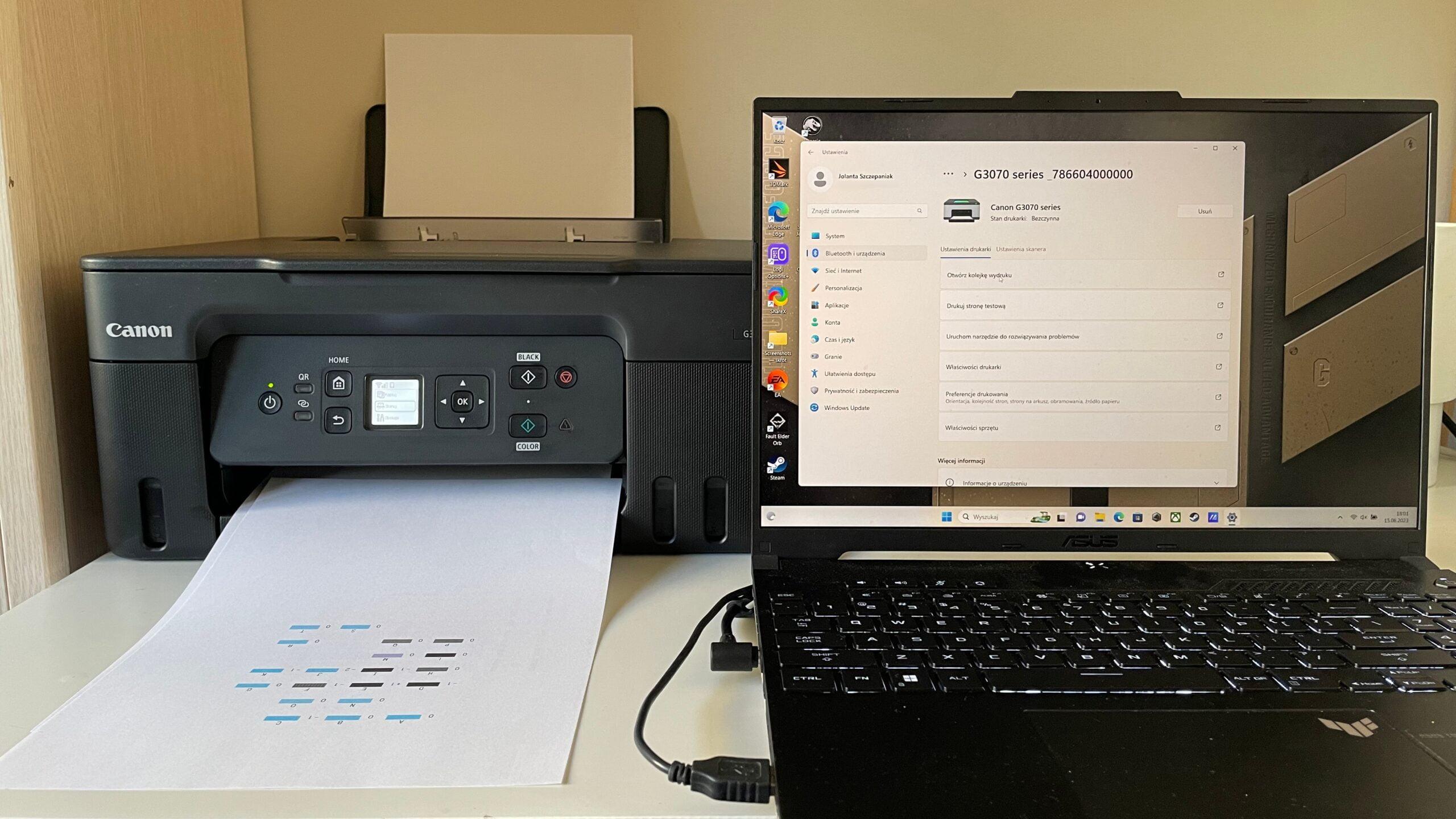
Printer Driver Unavailable Error? 7 Ways to Fix It on Windows
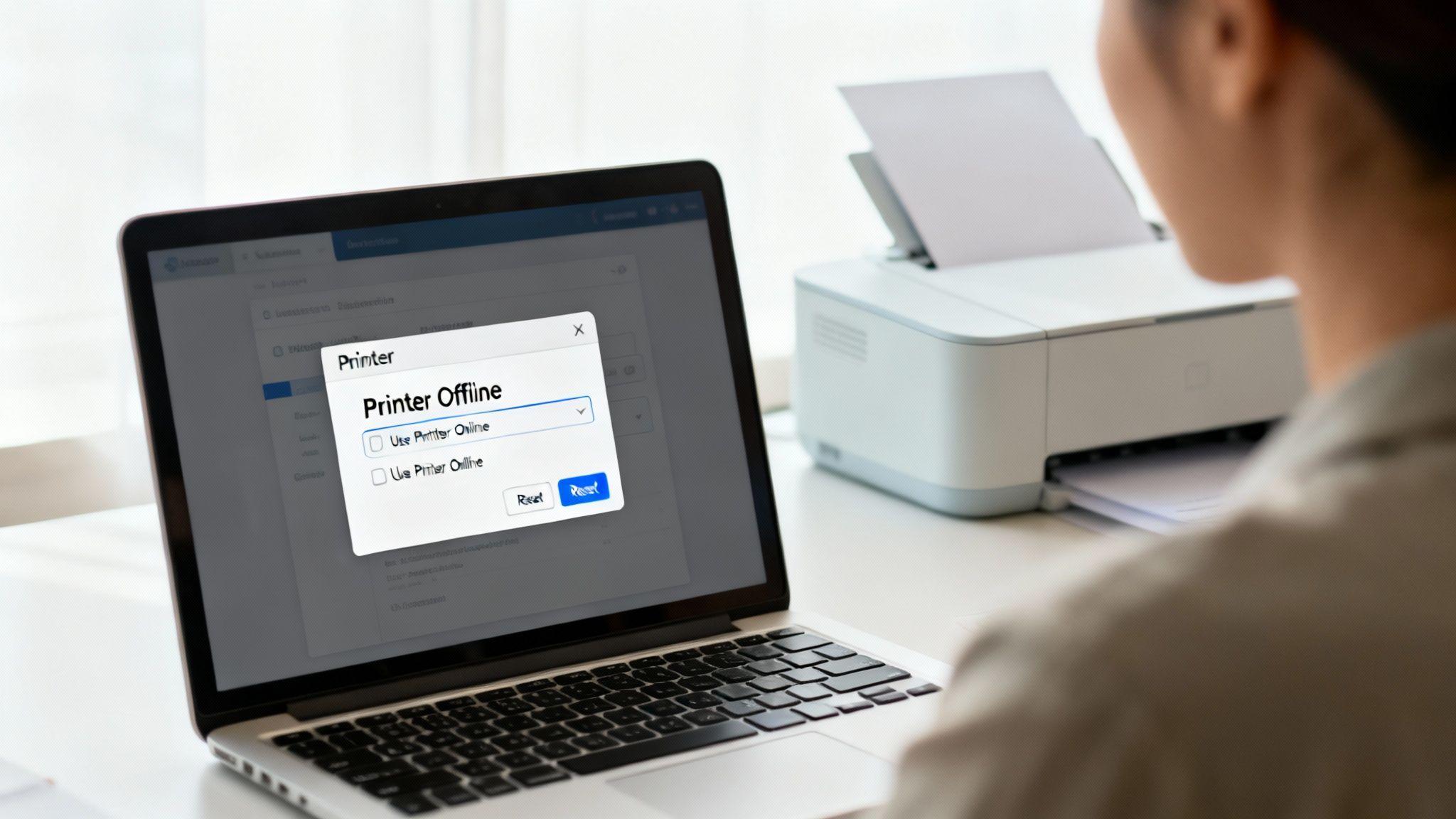
Seeing a “Driver is unavailable” message when trying to print can be frustrating. This error usually means Windows cannot properly communicate with the installed printer driver. As a result, your printer may stop responding, fail to appear as a usable device, or refuse to print documents.
The issue can occur after a Windows update, an incomplete driver installation, corrupted software files, or a connection problem.
The good news is that you can try several troubleshooting methods before considering professional repair. Here are seven practical ways to resolve the printer driver unavailable error on Windows 10 and Windows 11.
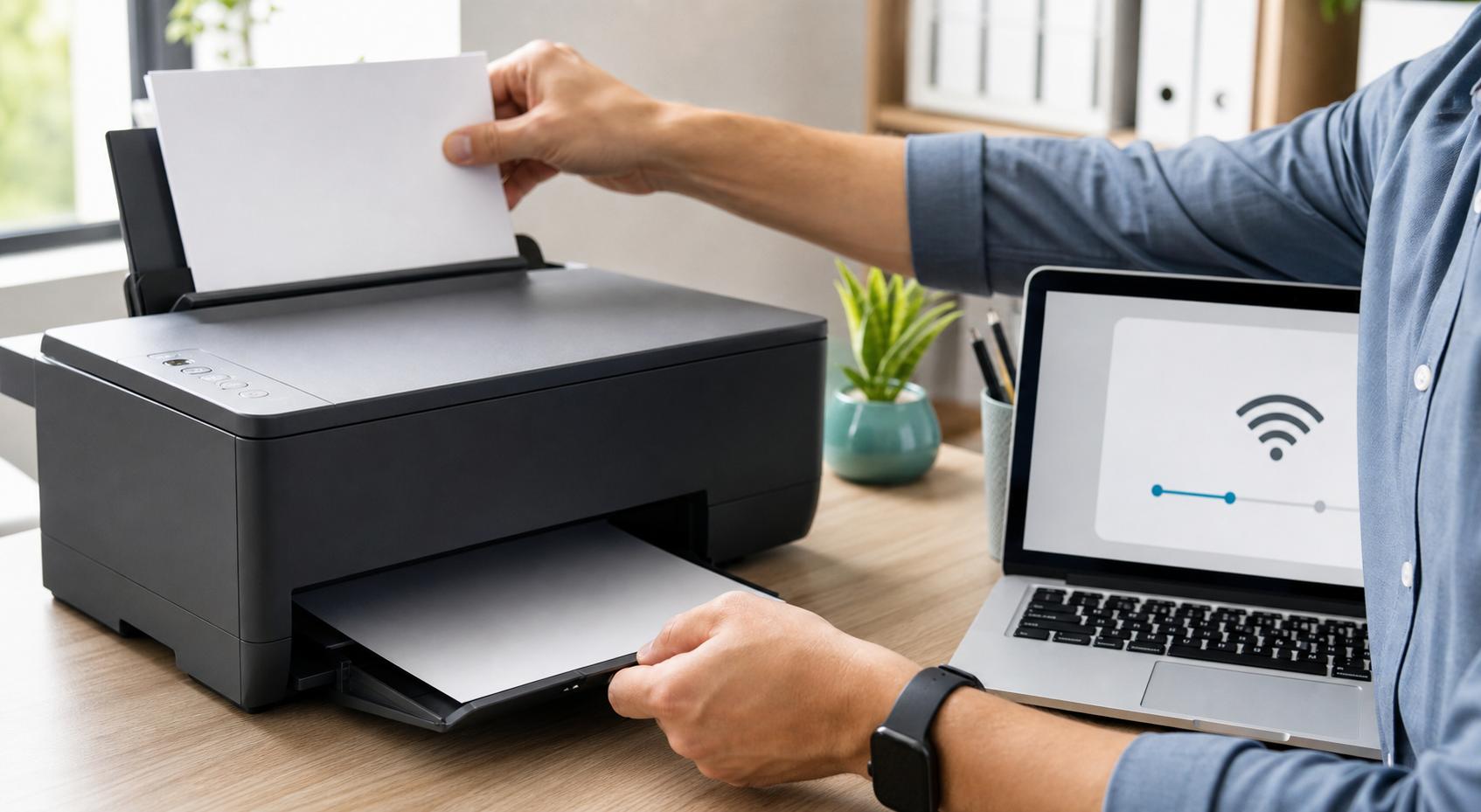
1. Restart Your Printer and Computer
A temporary communication problem between Windows and your printer can sometimes trigger driver-related errors.
Follow these steps:
- Turn off your printer.
- Disconnect its power cable from the electrical outlet.
- Restart your Windows computer.
- Wait approximately 30 seconds before reconnecting the printer.
- Turn the printer back on and allow it to initialize.
- Try printing a test document.
If you are using a USB printer, check that the cable is securely connected. For wireless printers, make sure the printer and computer are connected to the appropriate network.
2. Run the Windows Printer Troubleshooter
Windows includes built-in troubleshooting tools that can identify certain printer-related problems.
To access the printer troubleshooter:
- Open Settings on your computer.
- Select System and then Troubleshoot.
- Open Other troubleshooters.
- Find the Printer option.
- Select Run, if available.
- Follow the instructions displayed on your screen.
Windows will check for common printing problems and may suggest corrective actions.
The available troubleshooting options can vary depending on your Windows version.
3. Update Your Printer Driver
An outdated or incompatible driver may prevent Windows from communicating properly with your printer.
You can check for driver updates through Device Manager.
- Right-click the Start button.
- Select Device Manager.
- Expand the Printers or Print queues section.
- Find your printer.
- Right-click its name and select Update driver.
- Choose Search automatically for drivers.
If Windows finds a compatible update, follow the installation instructions.
If no updated driver is available, visit your printer manufacturer’s official website and check whether a newer driver is available for your exact printer model and Windows version.
4. Remove and Reinstall Your Printer
Sometimes the existing printer installation becomes corrupted or incorrectly configured. Removing the device and adding it again can help resolve the issue.
Follow these steps:
- Open Windows Settings.
- Select Bluetooth & devices.
- Open Printers & scanners.
- Select your printer from the device list.
- Choose Remove.
- Restart your computer.
- Return to Printers & scanners.
- Select Add device and follow the setup instructions.
For some printers, Windows may automatically install a compatible driver during setup. If it does not, you may need to install the appropriate driver manually.
5. Download the Correct Driver From the Manufacturer
Installing an incorrect driver can cause compatibility problems and prevent your printer from working properly.
To find the correct software:
- Identify your printer’s exact model number.
- Visit the manufacturer’s official support website.
- Search for your printer model.
- Select your Windows operating system and version.
- Download the recommended printer driver.
- Open the downloaded installation file.
- Follow the setup instructions.
Make sure you choose the correct driver for your printer model. Avoid downloading drivers from unfamiliar third-party websites, as they may contain outdated or unsuitable software.
6. Restart the Print Spooler Service
The Print Spooler is a Windows service responsible for managing printing tasks. If it stops working correctly, printing operations may fail even when the printer driver is installed.
You can restart this service using the following method:
- Press Windows + R on your keyboard.
- Type
services.mscand press Enter. - Find Print Spooler in the services list.
- Right-click it.
- Select Restart.
- Wait for the service to restart.
- Try printing again.
If the Restart option is unavailable, check whether the service is running and start it if necessary.
7. Install Available Windows Updates
Windows updates can include compatibility improvements, bug fixes, and updated drivers that may help resolve printer problems.
To check for updates:
- Open Settings.
- Select Windows Update.
- Click Check for updates.
- Install available updates.
- Restart your computer if requested.
You can also check Advanced options > Optional updates for available driver updates. Review the listed drivers before installing them and select the one that matches your printer.
After updating Windows, try printing a test page to check whether the problem has been resolved.
Frequently Asked Questions
What does Printer Driver Unavailable mean?
It means Windows cannot properly use the installed printer driver. This may happen because the driver is outdated, corrupted, incompatible, or incorrectly installed.
Why did my printer driver become unavailable after a Windows update?
A Windows update can sometimes affect existing printer drivers or create compatibility issues. Installing a compatible driver from the manufacturer’s official website may help resolve the problem.
Can I use my printer without installing its driver?
Some printers support built-in Windows printing features or standard printing protocols. However, installing the correct driver is often necessary to access all printer functions and settings.
How do I know which printer driver I need?
Check your printer’s exact model number and operating system version. Then visit the manufacturer’s official support website to find the compatible driver.
Should I uninstall my printer driver before reinstalling it?
Removing the printer from Windows and adding it again is a useful first step. If the problem continues, you may need to remove the existing driver package and install the correct version. Be careful not to remove drivers used by other printers.
Final Thoughts
The printer driver unavailable error can occur for several reasons, but it does not always indicate a hardware problem. Restarting your devices, running Windows troubleshooting tools, updating drivers, and reinstalling the printer can often help restore normal printing.
If the error continues after trying these methods, check your printer manufacturer’s support documentation for model-specific instructions.